Outlook Web App
Outlook on the web (OWA) is a web-based email client that lets you access your Outlook account from any device. It provides a rich user interface for managing emails, calendars, contacts, and tasks. Through the Web App, users can customize various settings like date and time formats, time zone, dark mode, themes, mail layout settings, etc.
What if you want to programmatically access these settings? Some of these settings are exposed via Microsoft Graph API endpoint GET me/mailboxSettings, but not all of them. Fortunately, there is a way to access more detailed user settings stored in so-called Folder Associated Items (FAIs).
Folder Associated Items (FAIs)
Folder associated items (FAIs) are special hidden items stored within a folder that contain metadata or configuration information about that folder.
They are commonly used to hold configuration settings for various mailbox clients and services.
These configuration items can be accessed via new Microsoft Graph API endpoint GET /beta/me/mailFolders/{mailFolderId}/userConfigurations/{configurationId}.
The endpoint requires the MailboxConfigItem.Read permission to be granted to the application.
Read user-specific settings
One of the most interesting FAIs is OWA.UserOptions, which contains user-specific settings for the Outlook Web App.
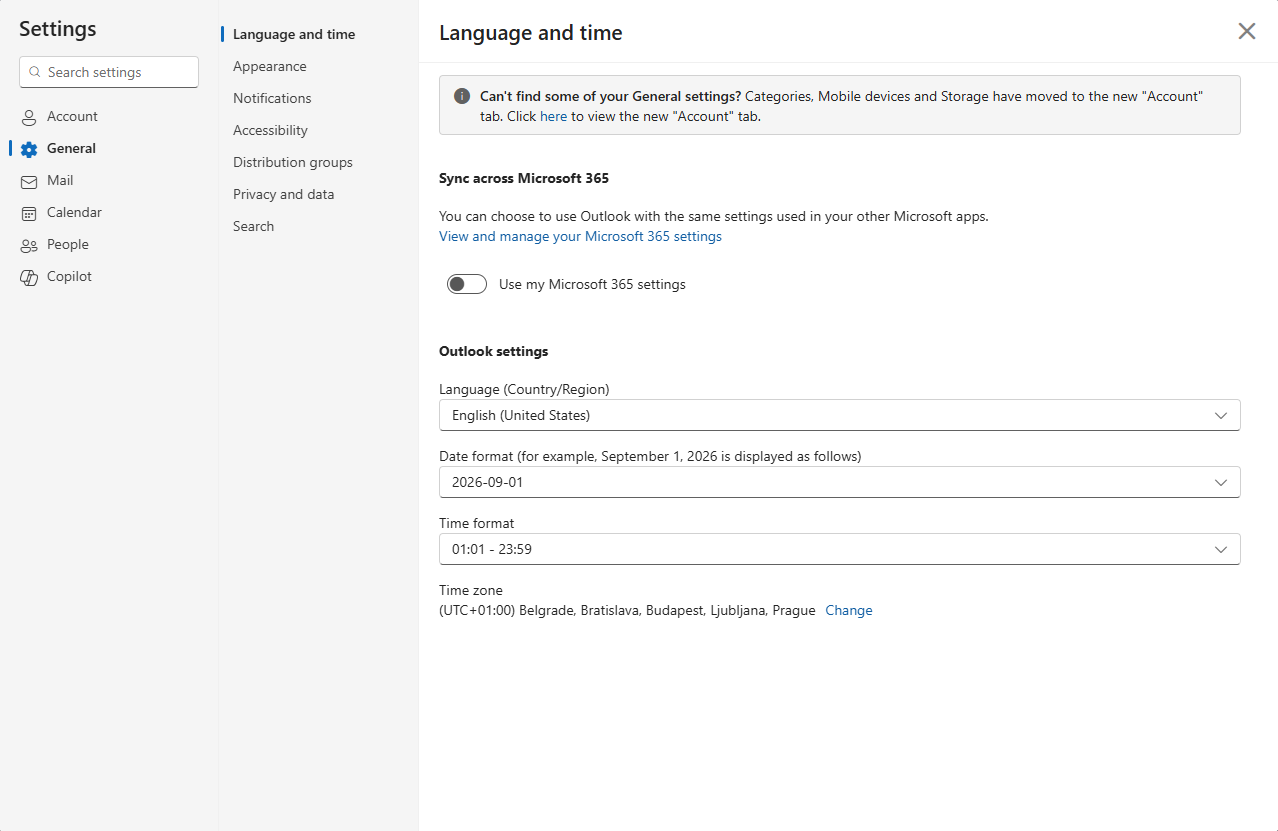
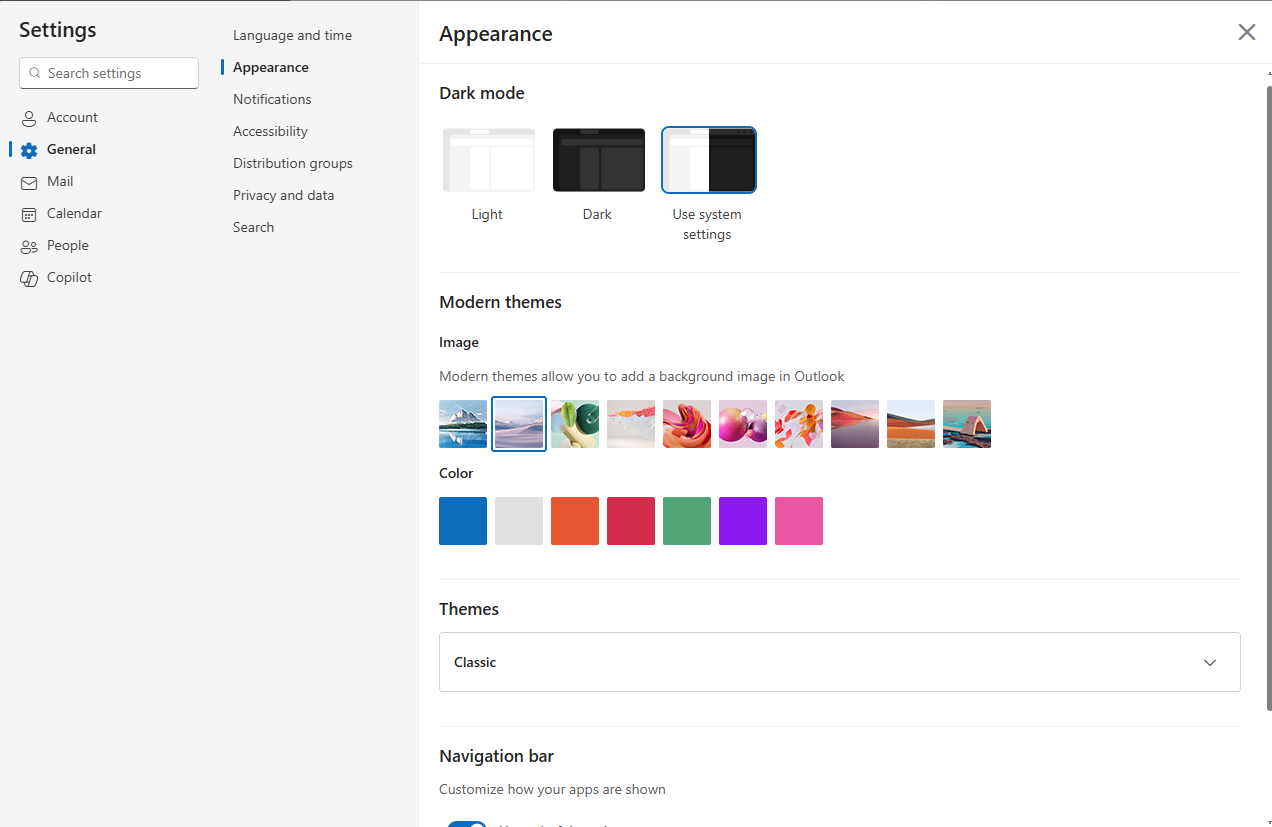
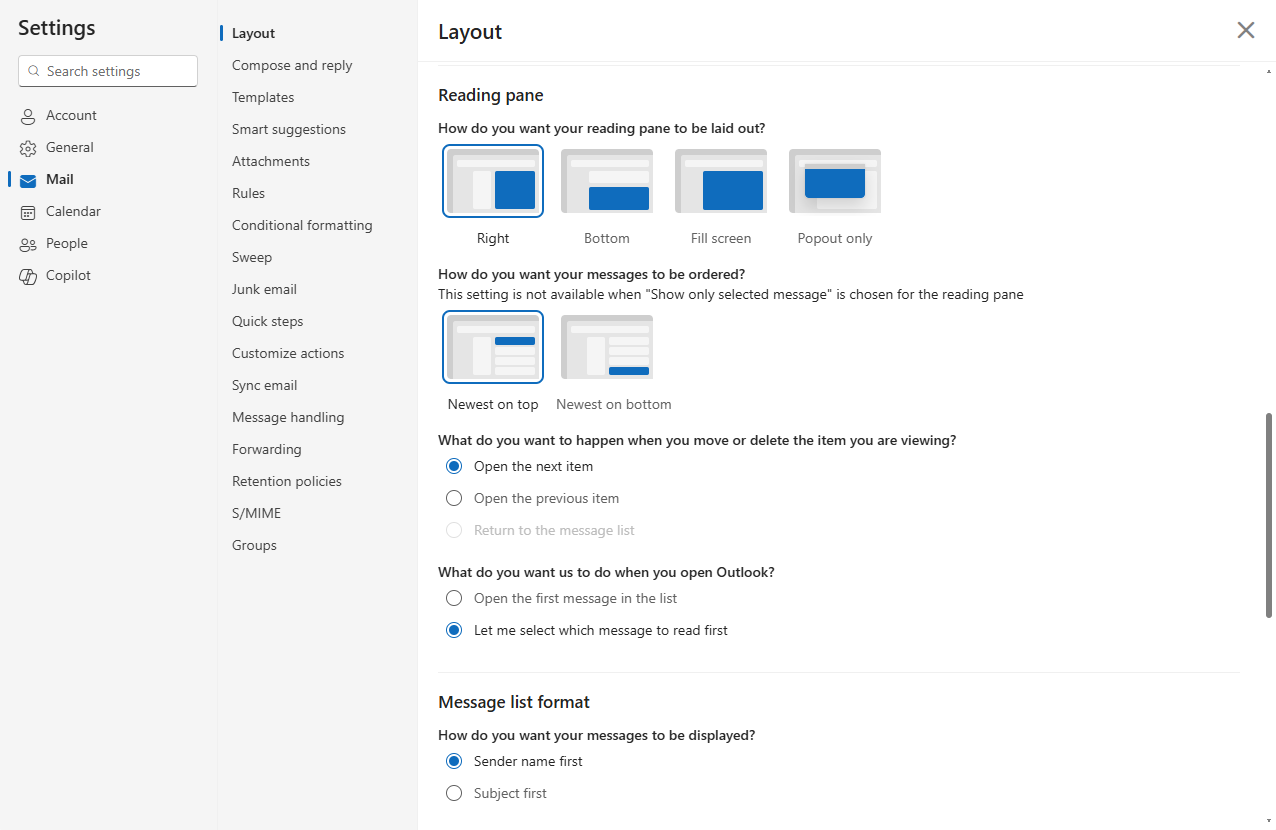
Let's explore what is stored in OWA.UserOptions and how to retrieve this user-specific settings via the Graph API.
As mentioned earlier, FAIs are stored as hidden items associated with specific folder. The OWA.UserOptions are stored in the folder with well-known name root. The folder can be accessed via Graph API endpoint GET /me/mailFolders/root.
To retrieve the OWA.UserOptions, you can query the userConfigurations endpoint like this:
GET /beta/me/mailFolders/root/userConfigurations/OWA.UserOptions
The response contains the structuredData property which is a set of key-value pairs of configuration objects.
{
    "id": "OWA.USerOptions",
    "structuredData": [
        {
            "keyEntry": {
                "type": "string",
                "values": [
                    "IsOptimizedForAccessibility"
                ]
            },
            "valueEntry": {
                "type": "boolean",
                "values": [
                    "False"
                ]
            }
        },
        {
            "keyEntry": {
                "type": "string",
                "values": [
                    "DefaultOnlineMeetingProvider"
                ]
            },
            "valueEntry": {
                "type": "integer32",
                "values": [
                    "3"
                ]
            }
        },
        {
            "keyEntry": {
                "type": "string",
                "values": [
                    "IsFocusedInboxEnabled"
                ]
            },
            "valueEntry": {
                "type": "boolean",
                "values": [
                    "True"
                ]
            }
        },
         ...
        {
            "keyEntry": {
                "type": "string",
                "values": [
                    "timeformat"
                ]
            },
            "valueEntry": {
                "type": "string",
                "values": [
                    "HH:mm"
                ]
            }
        }
    ]
}
When using the Microsoft Graph PowerShell SDK, there is the Get-MgBetaUserMailFolderUserConfiguration cmdlet, but the return type does not currently include the structuredData property. That's why you need to use the Invoke-MgGraphRequest cmdlet to make the request directly:
$clientId = '<client_id>'
$tenantId = '<tenant_id>'
Connect-MgGraph -ClientId $clientId -TenantId $tenantId

$userId = '<user_id>'
$mailFolderId = 'root'
$userConfigurationId = 'OWA.UserOptions'

$response = Invoke-MgGraphRequest -Uri "https://graph.microsoft.com/beta/users/$userId/mailFolders/$mailFolderId/userConfigurations/$userConfigurationId" -Method GET
$response.StructuredData | ForEach-Object {
  [PSCustomObject]@{ Key = $_.keyEntry.values[0]; Value = $_.valueEntry.values[0] }
} |
Sort-Object Key |
Format-Table -AutoSize
Don't forget to grant the MailboxConfigItem.Read permission to your app registration in Entra ID.
The result will be sorted by the user option name:
Key                                         Value
---                                         -----
AllowedOnlineMeetingProviders               WzMsNTEsNTIsNTMsNTQsNTUsNTYsNTcsNTgsNTksNjAsNjEsNjIsNjMsNjRd
CheckForReportJunkDialog                    False
ClientActiveSessionCount                    7
ClientLastLogonDate                         3/14/2023 6:55:29 AM
ClientSessionStartDate                      5/29/2023 6:56:02 AM
ConversationSortOrderReact                  5
dateformat                                  yyyy-MM-dd
DefaultOnlineMeetingProvider                3
DisplayDensityMode                          0
EventsFromEmailDelegateChecked              True
EventsFromEmailEnabled                      True
EventsFromEmailShadowMailboxChecked         True
FavoritesBitFlags                           18
FirstOWALogon                               3/6/2023 6:18:36 AM
FirstOWAReactCalendarLogon                  5/29/2023 6:55:53 AM
FirstOWAReactMailLogon                      3/6/2023 6:18:36 AM
FirstOWAReactPeopleLogon                    12/11/2023 12:07:10 PM
FolderPaneBitFlags                          2
FrequentlyUsedFolders                       {"FolderId":"AQMkAGRlM2Y5YTkzLWI2NzAtNDczOS05YWMyLTJhZGY2MGExMGU0MgAuAAADSG3wPE27kUeySjmT5eRT8QEAfJKVL07sbkmI…
GlobalListViewTypeReact                     0
GlobalReadingPanePositionReact              1
HasYammerLicense                            True
HideDeletedItems                            False
isDarkModeTheme                             False
IsFocusedInboxEnabled                       True
IsFocusedInboxOnLastUpdateTime              01/01/0001 00:00:00
IsGroupsTreeCollapsed                       True
IsMailRootFolderTreeCollapsed               False
IsOptimizedForAccessibility                 False
IsSenderScreeningSettingEnabled             False
NewEnabledPonts                             2143289343
PackageDeliveryEventsFromEmailSystemDefault False
ReportEventsCreatedFromEmailEnabled         True
ReportJunkSelected                          True
themeStorageId                              arcticsolitude
timeformat                                  HH:mm
timezone                                    Central Europe Standard Time
UserOptionsMigrationState                   5
The options retrieved for your mailbox may include a little bit different set of options depending on the mailbox configuration and features enabled. Usually, if some option has default value, it may not be stored in the FAI.
The following table contains the user options and their description:
| Option Name | Description |
|---|---|
| AllowedOnlineMeetingProviders | List of online meeting providers allowed for the user (e.g., Teams, Skype). |
| CheckForReportJunkDialog | Indicates if the "Report Junk" dialog should be shown. |
| ClientActiveSessionCount | Number of active OWA sessions for the user. |
| ClientLastLogonDate | Date and time of the user's last OWA logon. |
| ClientSessionStartDate | Date and time when the current OWA session started. |
| ConversationSortOrderReact | Sort order for conversations in React-based OWA interface. |
| dateformat | Preferred date format (e.g., MM/DD/YYYY). |
| DefaultOnlineMeetingProvider | Default provider for online meetings (e.g., Teams). |
| DisplayDensityMode | UI density mode (e.g., Compact, Cozy). |
| EventsFromEmailDelegateChecked | - |
| EventsFromEmailEnabled | Whether events from email are enabled. |
| EventsFromEmailShadowMailboxChecked | - |
| FavoritesBitFlags | Flags representing favorite folders or items. |
| FirstOWALogon | Indicates if this is the first OWA logon. |
| FirstOWAReactCalendarLogon | Indicates if this is the first logon to React-based Calendar. |
| FirstOWAReactMailLogon | Indicates if this is the first logon to React-based Mail. |
| FirstOWAReactPeopleLogon | Indicates if this is the first logon to React-based People. |
| FolderPaneBitFlags | Flags for folder pane settings. |
| FrequentlyUsedFolders | List of frequently used folders. |
| GlobalListViewTypeReact | Global list view type in React-based OWA. |
| GlobalReadingPanePositionReact | Position of reading pane in React-based OWA. |
| HasYammerLicense | Indicates if the user has a Yammer license. |
| HideDeletedItems | Whether deleted items are hidden. |
| isDarkModeTheme | Indicates if dark mode is enabled. |
| IsFocusedInboxEnabled | Whether Focused Inbox is enabled. |
| IsFocusedInboxOnLastUpdateTime | Timestamp of last Focused Inbox update. |
| IsGroupsTreeCollapsed | Whether the Groups tree is collapsed. |
| IsMailRootFolderTreeCollapsed | Whether the Mail root folder tree is collapsed. |
| IsOptimizedForAccessibility | Indicates if accessibility optimizations are enabled. |
| IsSenderScreeningSettingEnabled | Enables control over incoming communications by allowing specific senders |
| NewEnabledPonts | - |
| PackageDeliveryEventsFromEmailSystemDefault | Whether package delivery–related events are automatically created in calendar |
| ReportEventsCreatedFromEmailEnabled | Whether events from incoming emails are reported and available for processing |
| ReportJunkSelected | Indicates if "Report Junk" was selected. |
| themeStorageId | ID of the selected theme. |
| timeformat | Preferred time format (e.g., 12-hour or 24-hour). |
| timezone | User's preferred time zone. |
| UserOptionsMigrationState | State of migration for user options. |
Almost all of these options are not publicly documented by Microsoft. The descriptions provided here are based on observed behavior and common usage patterns in OWA.
Conclusion
In this article, I explored how to retrieve user-specific settings for Outlook Web App using the Microsoft Graph API. By accessing the OWA.UserOptions folder associated item, we can programmatically obtain various configuration settings that enhance the user experience in OWA.