MCP protocol and Microsoft MCP Server for Enterprise
MCP is an open protocol that enables integration between an LLM application and external tools and services. MCP servers provide a standard way, or protocol, to connect LLMs with data, tools, and resources. MCP lets you connect AI applications to other data and tools without needing to build a custom connection to each data source.
The Microsoft MCP Server for Enterprise is a programmatic interface for AI agents to query enterprise data in your Microsoft Entra tenant by using natural language. It translates natural language requests into Microsoft Graph API calls.
Tools
The Microsoft MCP Server for Enterprise exposes the following tools:
- microsoft_graph_suggest_queries - search for Microsoft Graph API calls that match the user's intent. It has a semantic index of example queries mapped to natural language and returns a list of candidate queries to the AI model. The example queries are provided by each team that owns a specific Microsoft Graph API area. It will ensure that only such queries that are working are returned.
- microsoft_graph_get - execute read-only call of the Graph query generated by the LLM. The call respects user roles and granted permissions of the MCP Client application.
- microsoft_graph_list_properties - retrieves properties of Microsoft Graph entity to help the AI model understand the data structure
MCP sequence
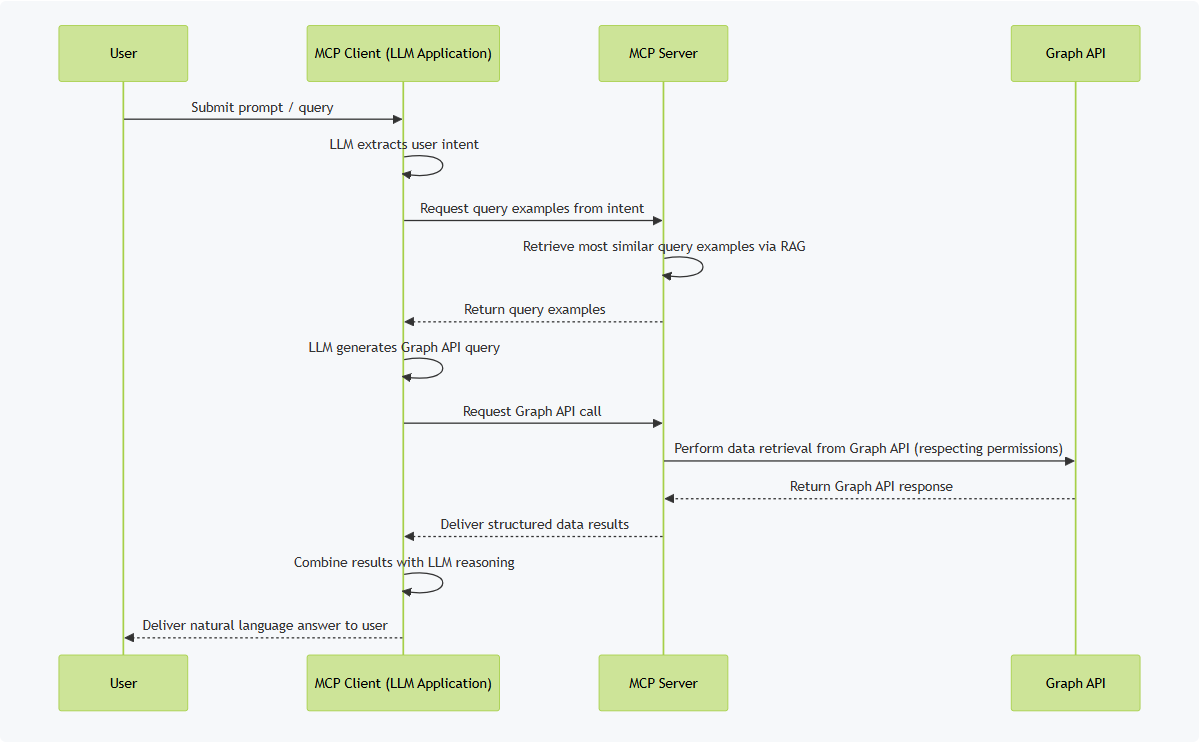
The following sequence diagram illustrates the interaction between the User, MCP Client (LLM Application), MCP Server, and Graph API when processing a user query.
Permission model
Security is important when dealing with sensitive data. There are four actors: user, MCP Client, MCP Server and Microsoft Graph API.
User
The user has certain roles in the tenant like User Administrator or Global Administrator. The Entra ID role is taken into account when the user wants to read data.
MCP Client
MCP Client must be tied with an Entra ID application. The Entra ID application must have granted permissions exposed by the Entra ID application of MCP Server. Only delegated permissions are supported. It is up to you to create an Entra ID application for your MCP Client and to grant the required permissions.
The current list of permissions exposed by the Microsoft MCP Server for Enterprise application are:
- MCP.AccessReview.Read.All - allows the app to read access reviews.
- MCP.AdministrativeUnit.Read.All - allows the app to read administrative units.
- MCP.Application.Read.All - allows the app to read all applications.
- MCP.AuditLog.Read.All - allows the app to read all audit logs.
- MCP.AuthenticationContext.Read.All - allows the app to read authentication context information.
- MCP.Device.Read.All - allows the app to read all devices.
- MCP.DirectoryRecommendations.Read.All - allows the app to read directory recommendations.
- MCP.Domain.Read.All - allows the app to read all domains.
- MCP.EntitlementManagement.Read.All - allows the app to read entitlement management data.
- MCP.GroupMember.Read.All - allows the app to read group member information.
- MCP.GroupSettings.Read.All - allows the app to read group settings.
- MCP.HealthMonitoringAlert.Read.All - allows the app to read all scenario health monitoring alerts.
- MCP.IdentityRiskEvent.Read.All - allows the app to read identity risk events.
- MCP.IdentityRiskyServicePrincipal.Read.All - allows the app to read identity risky service principals
- MCP.IdentityRiskyUser.Read.All - allows the app to read identity risky users.
- MCP.LicenseAssignment.Read.All - allows the app to read license assignments.
- MCP.LifecycleWorkflows-CustomExt.Read.All - allows the app to read lifecycle workflows custom extensions
- MCP.LifecycleWorkflows-Reports.Read.All - allows the app to read lifecycle workflows reports.
- MCP.LifecycleWorkflows-Workflow.Read.All - allows the app to read lifecycle workflows workflow information.
- MCP.LifecycleWorkflows-Workflow.ReadBasic.All - allows the app to list all workflows in lifecycle workflows.
- MCP.LifecycleWorkflows.Read.All - allows the app to read lifecycle workflows.
- MCP.NetworkAccess-Reports.Read.All - allows the app to read network access reports.
- MCP.NetworkAccess.Read.All - allows the app to read network access data.
- MCP.Organization.Read.All - allows the app to read organization information.
- MCP.Policy.Read.All - allows the app to read all policies.
- MCP.Policy.Read.ConditionalAccess - allows the app to read all conditional access policies.
- MCP.ProvisioningLog.Read.All - allows the app to read provisioning logs.
- MCP.Reports.Read.All - allows the app to read all reports.
- MCP.RoleAssignmentSchedule.Read.Directory - allows the app to read role assignment schedules for the directory.
- MCP.RoleEligibilitySchedule.Read.Directory - allows the app to read role eligibility schedules for the directory.
- MCP.RoleManagement.Read.Directory - allows the app to read role management data for the directory.
- MCP.Synchronization.Read.All - allows the app to read synchronization information.
- MCP.User.Read.All - allows the app to read all users.
- MCP.UserAuthenticationMethod.Read.All - allows the app to read user authentication methods.
Based on the purpose of the MCP Client, you can grant only a subset of these permissions.
For example, if the purpose of the MCP Client is to provide insights about users, you will grant only MCP.User.Read.All. If you ask the LLM something about administrative units, the MCP Server will reject the query because the MCP Client does not have the required permission MCP.AdministrativeUnit.Read.All.
You can have multiple MCP Clients with different sets of permissions.
Before you can add and grant any of these permissions, you need to provision an instance of MCP Server application in your tenant.
MCP Server
The MCP Server is tied with an Entra ID application called Microsoft MCP Server for Enterprise. It is a multi-tenant application managed by Microsoft. First of all, you need to provision the MCP Server and then you can configure your MCP client to connect to the MCP Server.
How to start with the Microsoft MCP Server for Enterprise
The best way to start using the Microsoft MCP Server for Enterprise is to install the latest version of the Microsoft.Entra.Beta PowerShell module.
Install-Module Microsoft.Entra.Beta -Force -AllowClobber
Once you have installed the module, connect to your tenant with the Application.ReadWrite.All, Directory.Read.All, and DelegatedPermissionGrant.ReadWrite.All permissions required to create a service principal and grant permissions.
Connect-Entra -TenantId '<Tenant-Id>' -Scopes 'Application.ReadWrite.All', 'Directory.Read.All', 'DelegatedPermissionGrant.ReadWrite.All'
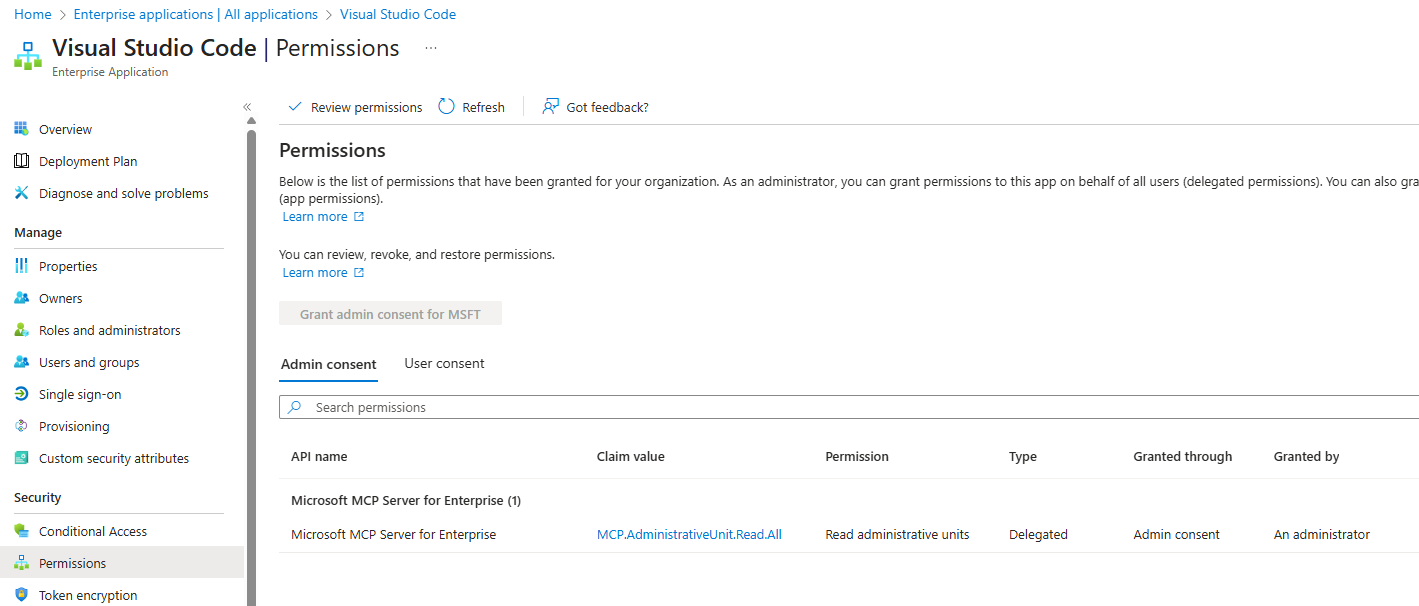
Register the Microsoft MCP Server for Enterprise in your tenant and grant one or more permissions to Visual Studio Code.
$newScopes = @('MCP.AdministrativeUnit.Read.All')
$grant = Grant-EntraBetaMCPServerPermission -ApplicationName 'VisualStudioCode' -Scopes $newScopes
If you omit the -Scopes parameter, all MCP* permissions will be granted.
Check the Enterprise applications in your Entra ID Admin Center and filter Microsoft Applications. You should see the Microsoft MCP Server for Enterprise application and the Visual Studio Code application.
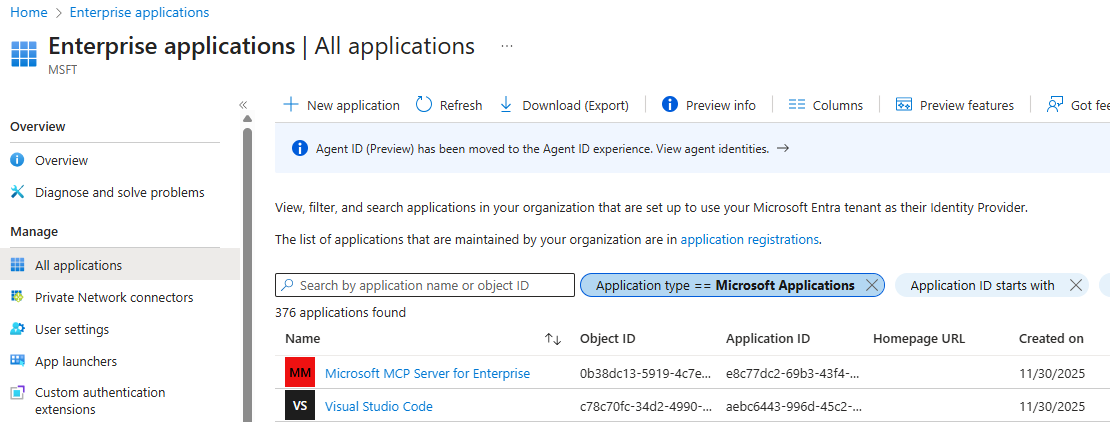
Click on the Visual Studio Code application and then click on Permissions. You should see the granted permissions.
Now, click install Microsoft MCP Server for Enterprise to open VS Code's MCP install page and select Install in VS Code and authenticate with an administrator account.
Example
The MCP Server is now ready to use. I granted the MCP.AdministrativeUnit.Read.All permissions, so I will open the GitHub Copilot chat in VS Code and start asking questions about administrative units in your tenant.
First, ask about the number of administrative units in your tenant.
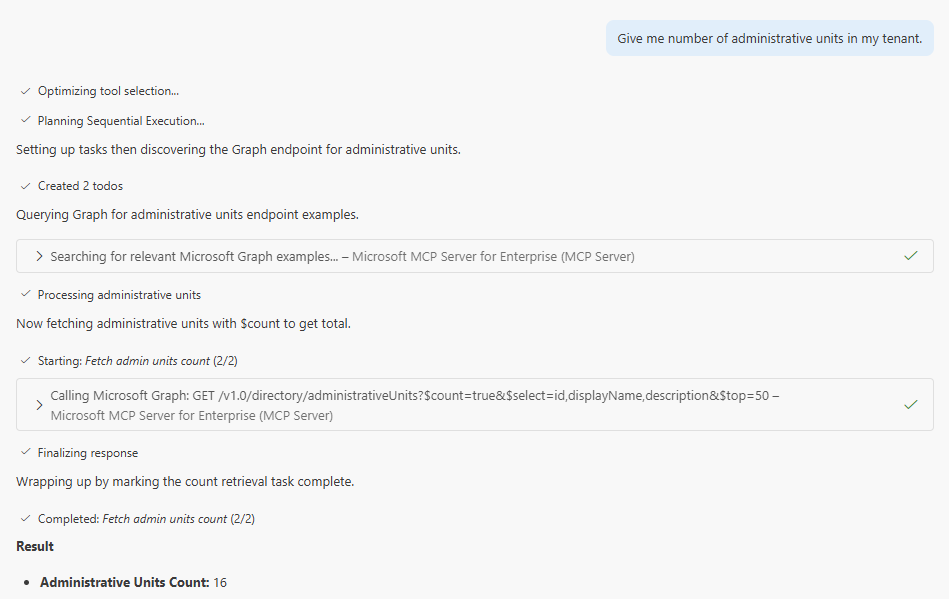
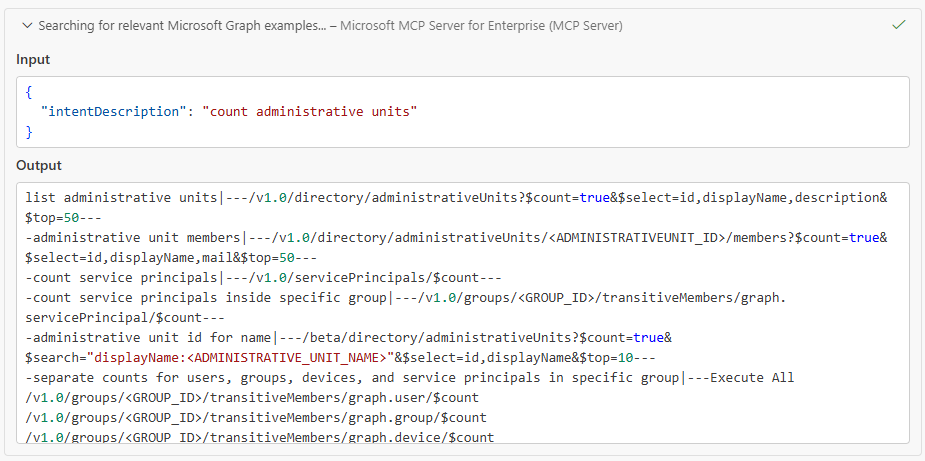
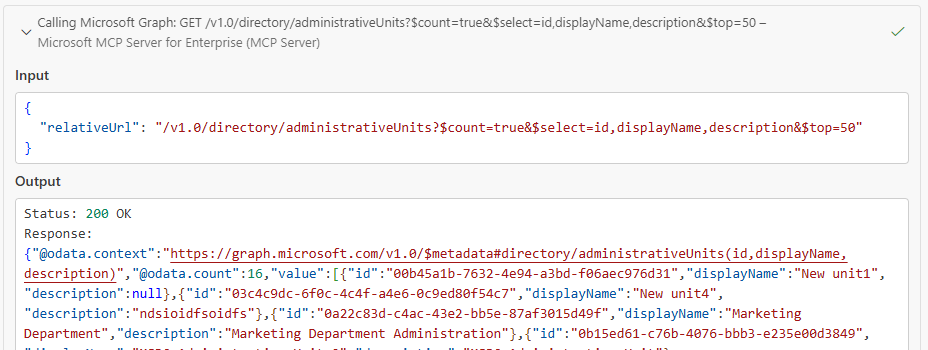
From the screenshot, you can see what tools were used to answer the question.
LLM first used the microsoft_graph_suggest_queries tool to get example queries related to administrative units.
Then LLM generated the query to get the count of administrative units and used the microsoft_graph_get tool to execute the query.
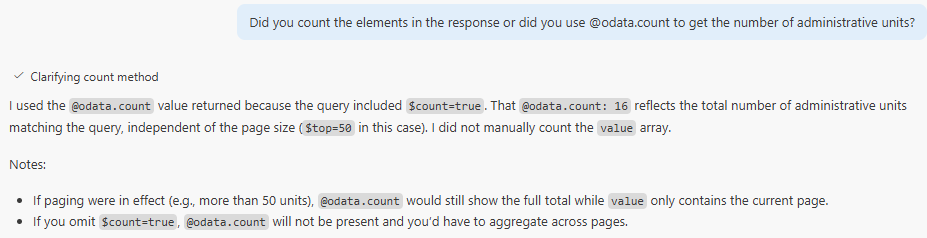
I asked if the LLM used @odata.count property to get the number of administrative units.
Now, ask about the administrative units with restricted management.
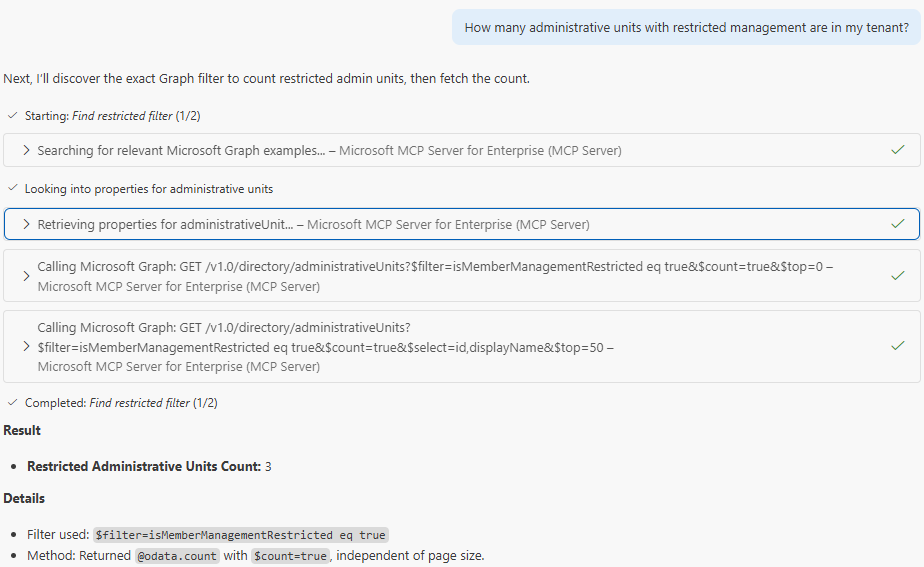
The LLM used the microsoft_graph_list_properties tool to get the properties of the administrative unit resource. The LLM found the isMemberManagementRestricted property and used this property to filter the administrative units.
Conclusion
The MCP Server for Enterprise is a remote MCP server that it is easy to configure and use. It works with just 3 tools instead of managing individual tools for every Microsoft Graph API area.
The MCP Server generates accurate queries based on over 500 real-world examples provided by Microsoft Graph API teams through RAG.
Although it is in preview, I encourage you to start testing it and integrating it into your AI-powered workflows.
References
- MCP Server for Enterprise overview: https://learn.microsoft.com/en-us/graph/mcp-server/overview
- Microsoft Entra Beta PowerShell docs: https://learn.microsoft.com/en-us/powershell/entra-powershell/how-to-manage-mcp-server-permissions?view=entra-powershell