Themes in Outlook Web App
When using Outlook Web App, users can customize their experience by changing themes. Users can choose between modern themes and classic themes. Both themes allow to choose either a color or an image. Modern themes will also apply the image as a background in the Outlook.
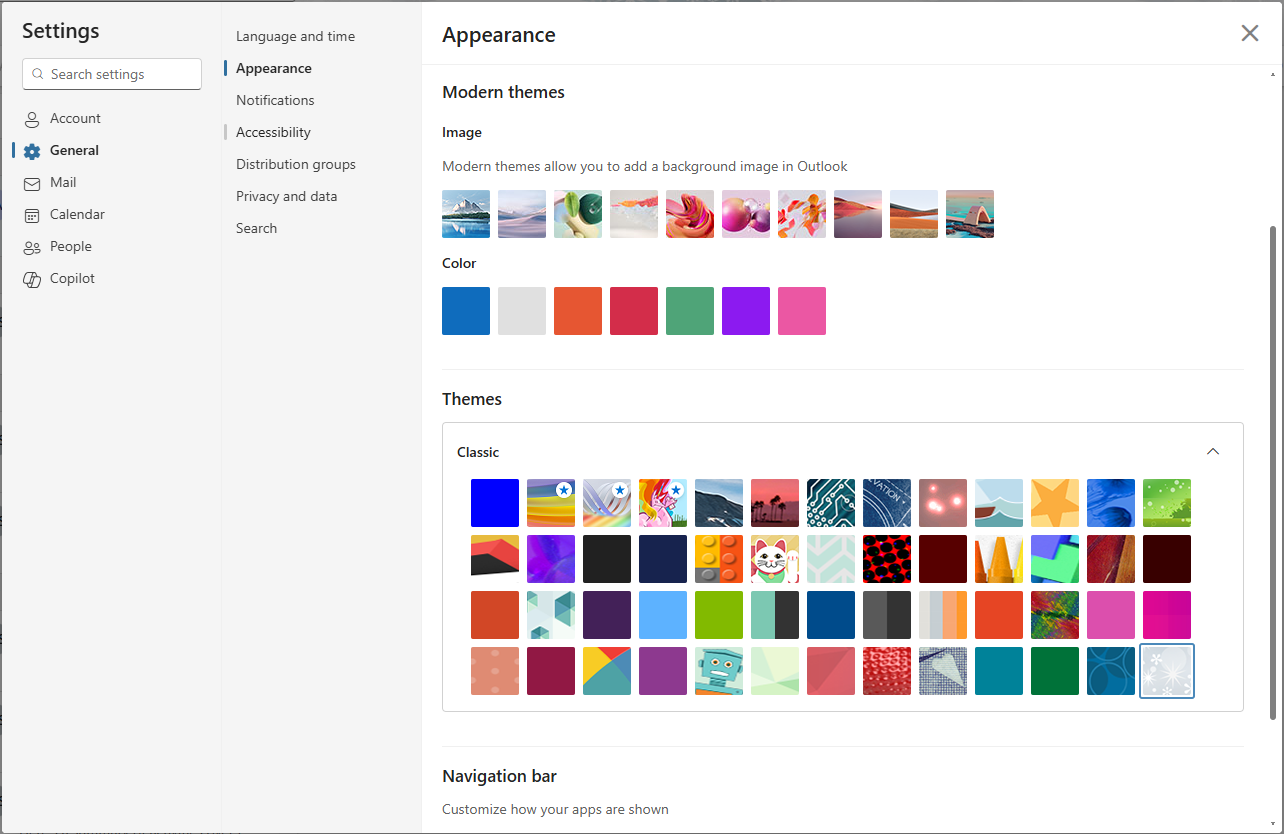
Access Outlook Web App User Settings
What if you want to change the theme programmatically?
You can use the Microsoft Graph API to manage various Outlook settings like time, date formats, time zones, and more via the GET /v1.0/me/mailboxSettings endpoint.
To read the current selected theme in Outlook Web App, you need to access the user configurations for OWA by calling the endpoint:
GET /beta/me/mailFolders/root/userConfigurations/OWA.UserOptions
The response will include a structuredData property that contains various user settings, including the theme.
{
  "id": "OWA.UserOptions",
  "structuredData": [
    ...
    {
      "keyEntry": {
        "type": "string",
        "values": [
          "themeStorageId"
        ]
      },
      "valueEntry": {
        "type": "string",
        "values": [
          "wntrlnd"
        ]
      }
    },
    ...
  ]
}
Look for the themeStorageId key in the structuredData property to find the current theme. The valueEntry will provide the identifier of the theme currently in use.
For modern themes, the themeStorageId will correspond to either a color or an image. For classic themes, it will correspond to the name of the theme.
Modern Themes
The following table lists the available colors and their corresponding storage IDs for modern themes:
| Color Name | Storage ID |
|---|---|
| Outlook (default) | - |
| Neutral | modern_officeneutral |
| Orange | neworange |
| Red | red |
| Green | green |
| Purple | purple |
| Pink | newpink |
Similarly, the following table lists the available images and their corresponding storage IDs for modern themes:
| Image Name | Storage ID |
|---|---|
| Alpine Glow | alpineglow |
| Arctic Solitude | articsolitude |
| Nature Undefined | natureundefined |
| Ready Confetti | readyconfetti |
| Magnetic Mood | magneticmood |
| Future Plus | futureplus |
| Ribbon Release | ribbonrelease |
| Ruby Hills | rubyhills |
| Marigold Hills | marigoldhills |
| Summer Summit | summersummit |
Classic Themes
For classic themes, the following table lists the available themes and their corresponding storage IDs:
| Theme Name | Storage ID |
|---|---|
| Contrast | contrast |
| Rainbow | rainbow |
| Ribbon | ribbon |
| Unicorn Acres | unicorn |
| Mountain Peak | mountain |
| Beach Sunset | beach |
| Circuit | circuit |
| Blueprint | blueprint |
| Far, far away | far |
| Whale of a time | whale |
| Super sparkle happy | super |
| Jelly fish | jelly |
| One world | wrld |
| Angular 80's | angular |
| Balloons | balloons |
| Black | black |
| Blueberry | blueberry |
| Bricks | bricks |
| Cats | cats |
| Chevron | chevron |
| Comic book | comic |
| Cordovan | cordovan |
| Crayon | crayon |
| 3D cubes | cubes |
| Cubism | cubism |
| Dark cordovan | darkcordovan |
| Dark orange | darkorange |
| Floating diamonds | diamonds |
| Grape | grape |
| Light blue | lightblue |
| Light green | lightgreen |
| Lite | lite |
| Medium dark blue | mediumdarkblue |
| Minimal | minimal |
| 20th century modern | modern |
| Orange | orange |
| Finger paints | paint |
| Pink | pink |
| Pixel pop | pixel |
| Polka dot | polka |
| Pomegranate | pomegranate |
| Primary | primary |
| Raspberry | raspberry |
| Robot | robot |
| Simple facets | simple |
| Spectrum facets | spectrum |
| Strawberry | strawberry |
| Tea garden | garden |
| Teal | teal |
| Watermelon | watermelon |
| Whimsical | whimsical |
| Winterland | wntrlnd |
Change theme
To change the theme of your Outlook Web App, you need to update the themeStorageId value in the structuredData property of the OWA.UserOptions user configuration and send a PATCH request to the /beta/me/mailFolders/root/userConfigurations/OWA.UserOptions endpoint. The endpoint requires the MailboxConfigItem.ReadWrite permission to be granted to the calling application.
PATCH /beta/me/mailFolders/root/userConfigurations/OWA.UserOptions

{
  "structuredData": [
    {
      "keyEntry": {
        "type": "string",
        "values": [
          "themeStorageId"
        ]
      },
      "valueEntry": {
        "type": "string",
        "values": [
          "alpineglow"
        ]
      }
    }
  ]
}
Open the Outlook Web App after making the change, and you should see the new theme applied. If the Outlook Web App was already open, you might need to refresh the page to see the changes.
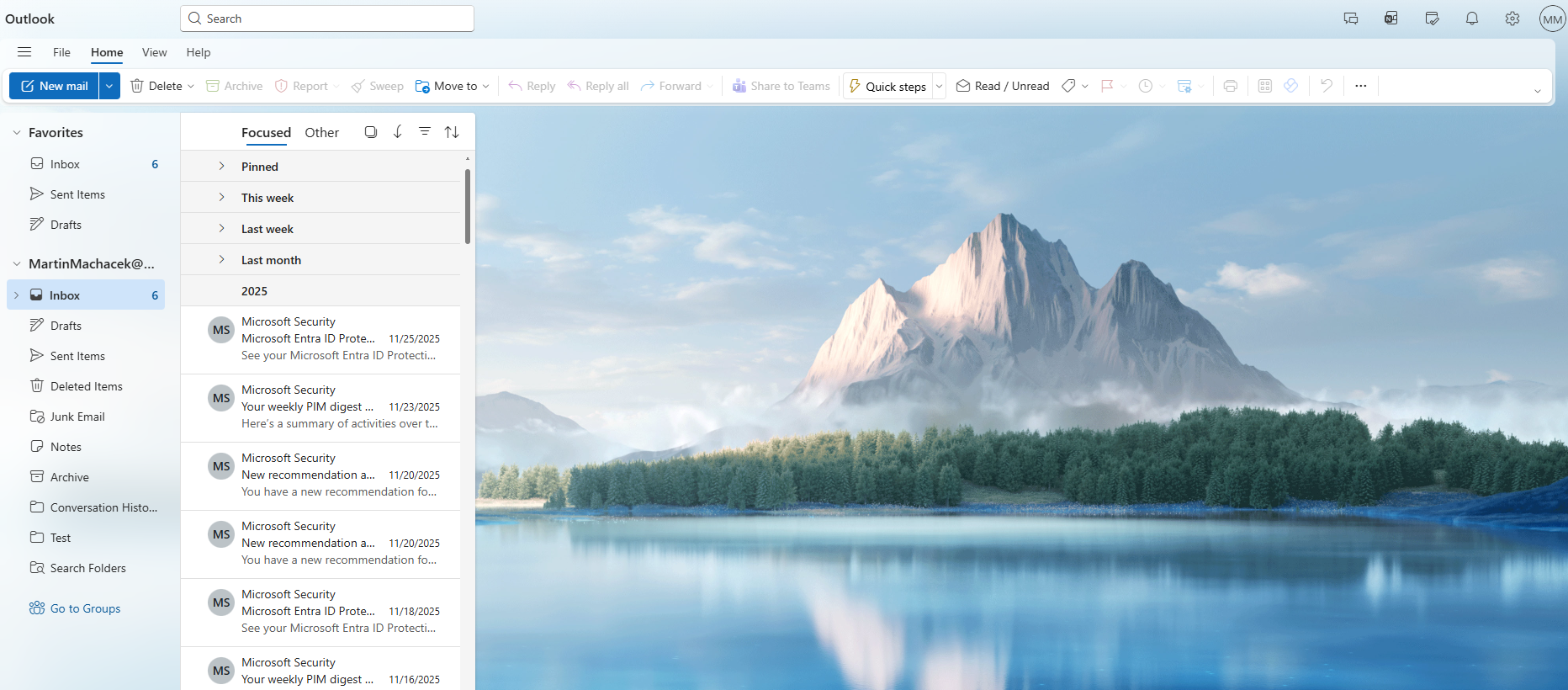
Because I chose the image from the modern theme, the image was applied also to the background.
Conclusion
Changing the theme of Outlook Web App via Microsoft Graph API is a straightforward process. By accessing the user configurations and updating the themeStorageId, you can programmatically customize the look and feel of your Outlook Web App experience. This can be particularly useful for administrators who want to enforce a specific theme across multiple users or for developers building applications that integrate with Outlook Web App.