The principle of least privilege
A good Microsoft Graph integration should request only the permissions your app really needs. This is the core of the least privilege principle: the narrower the access ⇒ the lower the privacy risk ⇒ the easier it is for tenant admins to trust and approve the app.
In practice, that means rethinking features that demand broad permissions and choosing simpler approaches when they deliver similar value with less access.
When selecting permission types, the safest order is to prefer resource-specific consent (RSC) where possible, then delegated permissions that act only in the signed-in user’s scope, and use application permissions only when no narrower option works.
For example, an app that only reads a user profile should request User.Read, not User.ReadWrite, and an app that deletes or restores the users needs only User.DeleteRestore.All permission. Applying least privilege this way reduces customer concerns, improves approval chances, and strengthens trust in the app.
Granular permissions for users
In the last two years, Microsoft Graph has introduced a new set of granular permissions for users. These permissions allow apps to request access to specific user properties and actions, rather than broad access to all user data.
Microsoft Graph currently supports the following granular permissions for users:
| Permission | Delegated text |
|---|---|
| User-LifeCycleInfo.Read.All | Read all users' lifecycle information |
| User-LifeCycleInfo.ReadWrite.All | Read and write all users' lifecycle information |
| User-Mail.ReadWrite.All | Read and write all secondary mail addresses for users |
| User-OnPremisesSyncBehavior.ReadWrite.All | Read and update the on-premises sync behavior of users |
| User-PasswordProfile.ReadWrite.All | Read and write all password profiles and reset user passwords |
| User-Phone.ReadWrite.All | Read and write all user mobile phone and business phones |
| User.ConvertToInternal.ReadWrite.All | Convert an external user to internal memeber user |
| User.Create | Create users |
| User.DeleteRestore.All | Delete and restore users |
| User.EnableDisableAccount.All | Enable and disable user accounts |
| User.Export.All | Export user's data |
| User.Invite.All | Invite guest users to the organization |
| User.ManageIdentities.All | Manage user identities |
| User.Read | Sign in and read user profile |
| User.Read.All | Read all users' full profiles |
| User.ReadBasic.All | Read all users' basic profiles |
| User.ReadUpdate.All | Read and update users |
| User.ReadWrite | Read and write access to user profile |
| User.ReadWrite.All | Read and write all users' full profiles |
| User.ReadWrite.CrossCloud | Read and write profiles of users that originate from an external cloud. |
| User.RevokeSessions.All | Revoke all sign in sessions for a user |
The latest addition to these granular permissions is the User.Create permission, which allows an app to create new users.
It's useful when your admin wants to delegate user creation to another users like a helpdesk or HR team, without giving them full access to all user data.
With the User.Create permission, your app can create a new user, but it cannot read or modify existing users. This is a significant improvement over the previous User.ReadWrite.All permission required for user creation, which granted full access to all user data.
What's important, the user who will be creating new users must have the User Administrator role assigned in Entra ID, otherwise the app will not be able to create new users even with the User.Create permission.
Create a user with the User.Create permission
Go to Entra Admin Center, select App registrations and register a new app.
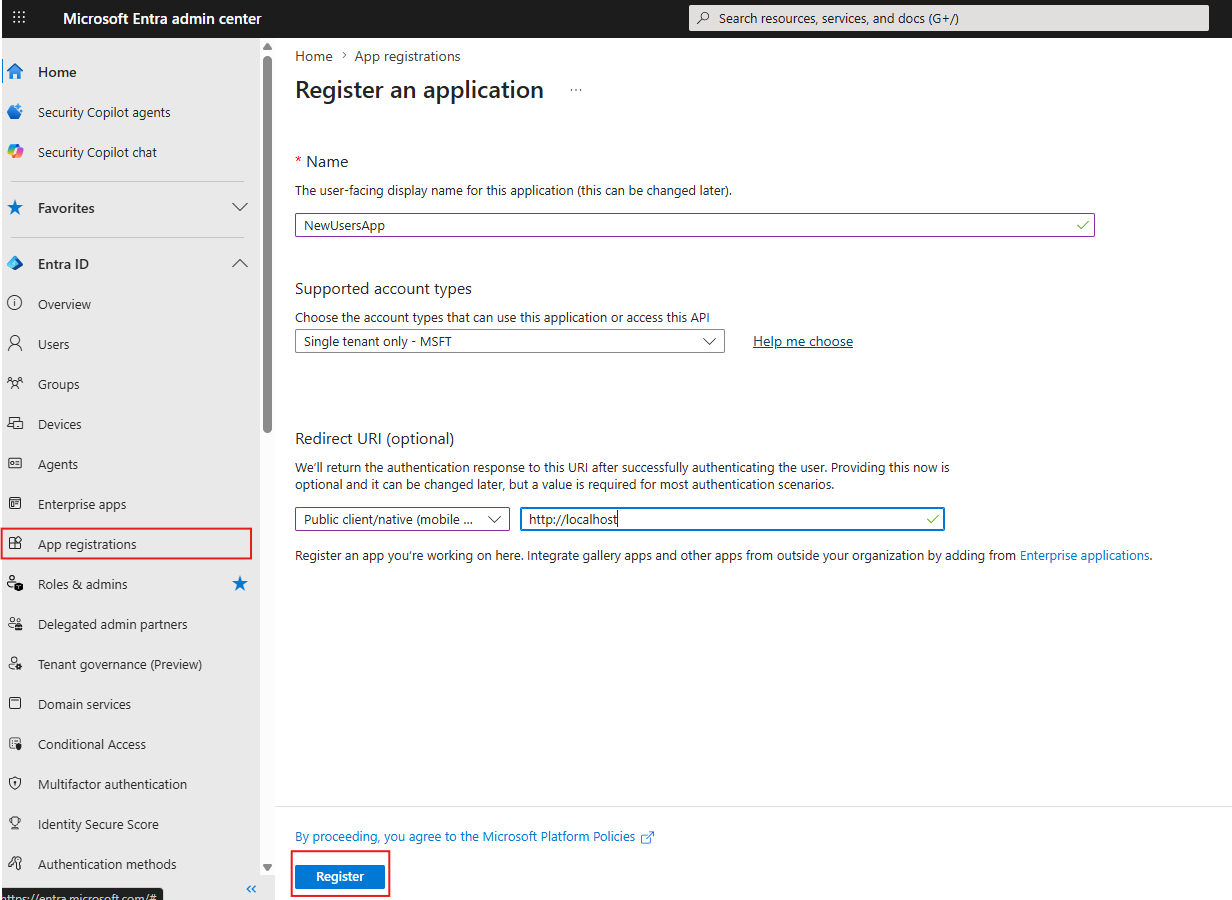
For redirect URL, I've set public client and http://localhost, because I want to test the app via PowerShell script.
Go to API permissions under Manage and add and grant delegated permissions User.Read and User.Create for Microsoft Graph.
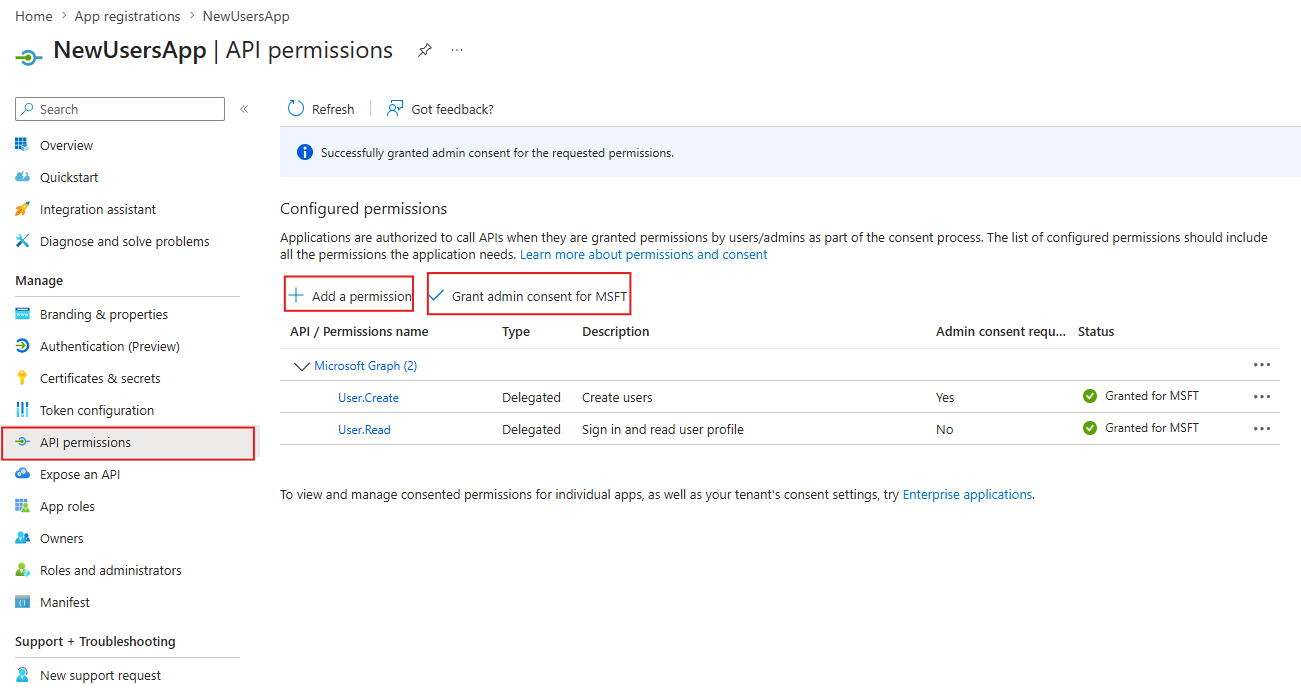
That's it. No other setup is required. Use application id and your tenant id in the following script to test the creation of a new user.
$clientId = '<client_id>'
$tenantId = '<tenant_id>'

Connect-MgGraph -ClientId $clientId -TenantId $tenantId

#Import-Module Microsoft.Graph.Users

$params = @{
  accountEnabled = $true
  displayName = "John Rambo"
  mailNickname = "john.rambo"
  userPrincipalName = "john.rambo@contoso.onmicrosoft.com"
  passwordProfile = @{
    forceChangePasswordNextSignIn = $true
    password = "xWwvJ]6NMw+bWH-d"
  }
}

New-MgUser -BodyParameter $params

Disconnect-MgGraph
It will create a new user and returns the user's properties. If you try to read or update the user via Get-MgUser or Update-MgUser, you will get 403 forbidden error, because the app does not have permission to read or update users.
Conclusion
The new User.Create permission is a strong example of least-privilege design improving Microsoft Graph. It allows organizations to delegate user provisioning to helpdesk or HR scenarios without granting broad read/write access to the full directory. Combined with the required Entra ID role assignment, it creates a much cleaner security boundary: the app can create new users, but it still cannot read or modify existing ones. That makes the solution safer for tenants, easier for admins to approve, and a much better default for developers building trusted integrations. Don't forget that the user must have the User Administrator` role.