Synced vs. Federated Connectors
Microsoft 365 Copilot becomes more useful when it can reason over the information employees use every day—not just Microsoft 365 content, but also data from business systems, knowledge repositories, and external tools. Microsoft supports two main connector models for this: synced connectors and federated connectors.
Synced Connectors
Synced connectors bring external content into Microsoft Graph. The data is ingested, indexed, and made available for Copilot and other Microsoft 365 experiences. This model works well for knowledge bases, document repositories, line-of-business systems, and other sources where searchable, semantically indexed content improves discovery and reasoning.
Federated Connectors
Federated connectors are relatively new and take a different approach. Instead of copying or indexing data into Microsoft 365, they retrieve information live from the source system using Model Context Protocol(MCP). This makes them a strong fit for dynamic systems, regulated content, or scenarios where data should remain in its original location. Copilot can access fresh information at the moment of the user’s request, while the source system continues to enforce permissions.
The biggest difference is data movement. Synced connectors optimize for indexing, semantic search, and broad Microsoft 365 availability. Federated connectors optimize for real-time access, source-controlled permissions, and minimal data duplication.
For organizations, this is not necessarily an either-or decision. Both connector types can coexist in the same tenant. Use synced connectors when you want enterprise content to be discoverable and semantically indexed across Microsoft 365. Use federated connectors when freshness, source residency, or user-level authentication is more important.
In the rest of the article, I will focus on federated connectors.
Prerequisites
Required Roles
| Role | Purpose |
|---|---|
| Global Administrator | Access Copilot connectors in Microsoft 365 Admin Center |
| AI Administrator | Create federated connectors in Entra Admin Center |
Required Portal Access
- Entra Admin Center — identity and authorization configuration
- Microsoft 365 Admin Center — connector registration
- Teams Developer Portal — SSO client registration
- Azure Portal — Azure Functions and API Management
Recommended Steps
The following steps outline the end-to-end flow. Each step is covered in detail in the sections that follow.
- Build the MCP Server
- Create the MCP Server and host it in Azure Functions
- It should expose read-only MCP tools
- Define the MCP public endpoint shape
- Decide what the public connector endpoint will be
- This should be the APIM URL, not the raw Azure Function URL
- Create or update the Microsoft Entra app registration
- Create the Microsoft Entra ID app registration that represents access to your MCP API
- Update the app registration and add the token audience before registering the SSO client in Teams Developer Portal.
- Configure APIM authentication and authorization
- Put Azure API Management in front of the Azure Function
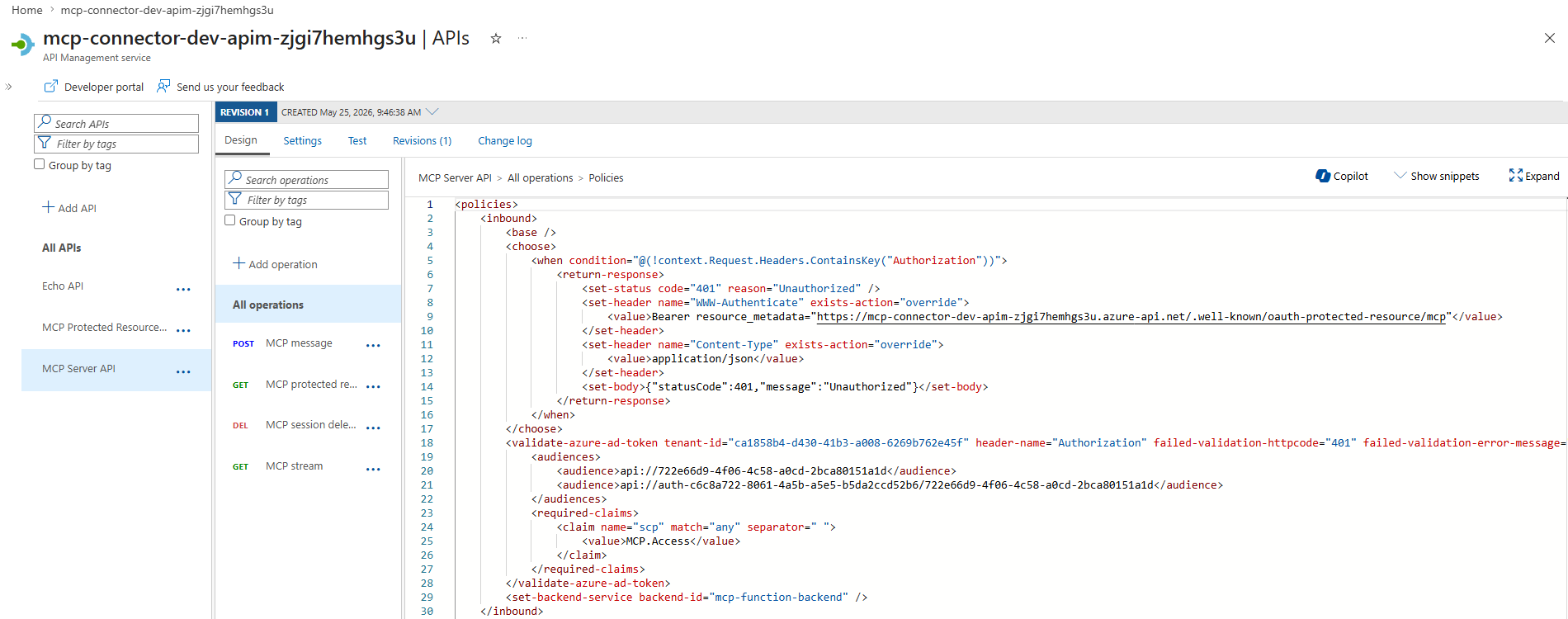
- APIM should validate the bearer token, check issuer, check audience, check scopes, reject unauthorized requests, forward valid requests to Azure Function
- Wire APIM to the Azure Function
- Configure APIM to route the validated MCP request to the Azure Function
- Register the SSO client in Teams Developer Portal
- Use Teams Developer Portal to create the Microsoft Entra SSO registration
- Microsoft Entra SSO registration ID needed when configuring the connector
- Register the custom MCP connector in Microsoft 365 Admin Center
With the steps outlined, let's start building. The first piece is to implement the MCP server itself. I'm using Azure Functions with the MCP worker SDK, but the same concepts apply to any hosting model.
Build MCP server
I will implement the MCP server using Azure Functions.
Create Azure Function
Use the McpToolTrigger attribute to mark the function as an MCP tool. One of the important requirements for the federated connector is that MCP server must expose at least one read-only tool. The tool must have the readOnlyHint annotations. At this time, the McpToolTrigger attribute doesn't have a parameter to specify the read-only hint, so we need a workaround.
When a MCP client asks for the list of tools from the MCP server, the server must return the annotations object in the response, and the annotations object must include the readOnlyHint property set to true for at least one tool. To achieve that, we need to include annotations into McpMetadata attribute, read metadata inside APIM outbound policy and include annotations into the MCP response.
public sealed class CompetencyTools(ILogger<CompetencyTools> logger)
{
    private const string ListCompetenciesToolName = "list_competencies";
    private const string ListCompetenciesToolDescription = "Lists the available engineering competencies and their descriptions.";
    private const string ListCompetenciesToolMetadata = """
        {
          "annotations": {
            "title": "List competencies",
            "readOnlyHint": true,
            "destructiveHint": false,
            "openWorldHint": false
          }
        }
        """;

    private const string GetCompetencyLevelsToolName = "get_competency_levels";
    private const string GetCompetencyLevelsToolDescription = "Returns the five maturity levels and requirements for each engineering competency.";
    private const string GetCompetencyLevelsToolMetadata = """
        {
          "annotations": {
            "title": "Get competency levels",
            "readOnlyHint": true,
            "destructiveHint": false,
            "openWorldHint": false
          }
        }
        """;

    [Function(nameof(ListCompetencies))]
    public IReadOnlyList<Competency> ListCompetencies([McpToolTrigger(ListCompetenciesToolName, ListCompetenciesToolDescription)]
        [McpMetadata(ListCompetenciesToolMetadata)] ToolInvocationContext context)
    {
        logger.LogInformation("MCP tool {ToolName} invoked.", ListCompetenciesToolName);
        return CompetencyCatalog.ListCompetencies();
    }

    [Function(nameof(GetCompetencyLevels))]
    public IReadOnlyList<CompetencyLevelSet> GetCompetencyLevels([McpToolTrigger(GetCompetencyLevelsToolName, GetCompetencyLevelsToolDescription)]
        [McpMetadata(GetCompetencyLevelsToolMetadata)] ToolInvocationContext context)
    {
        logger.LogInformation("MCP tool {ToolName} invoked.", GetCompetencyLevelsToolName);
        return CompetencyCatalog.GetCompetencyLevels();
    }
}
As you can see, the MCP server exposes tools for listing engineering competencies and their levels. Both tools are read-only, and we use the McpMetadata attribute to include the annotations in the MCP response.
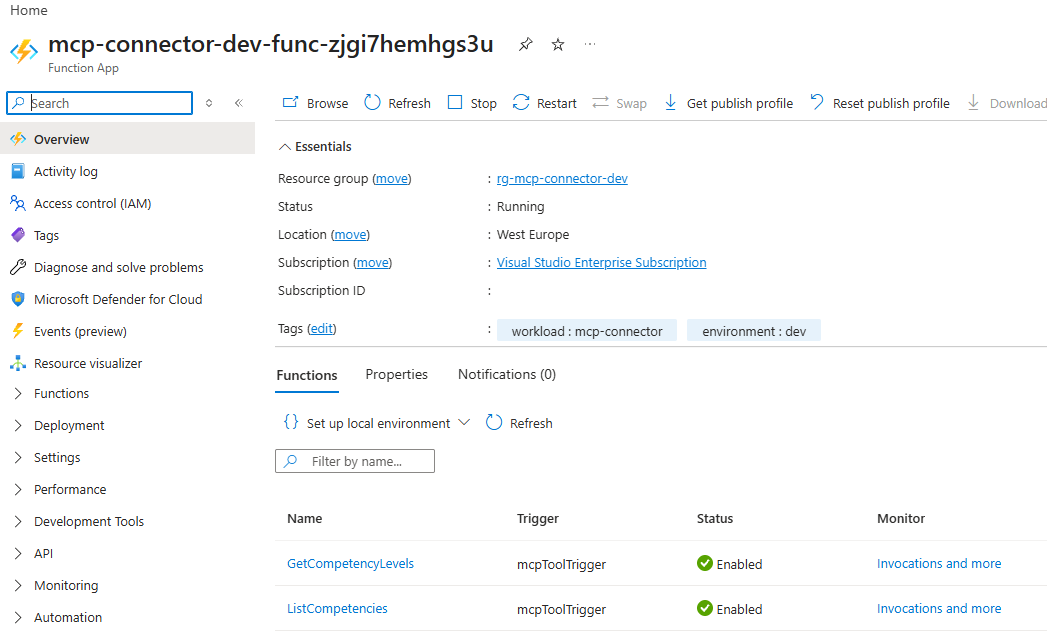
Deploy the Azure Function and verify the tools are listed:
Configure networking access restrictions for Azure Function
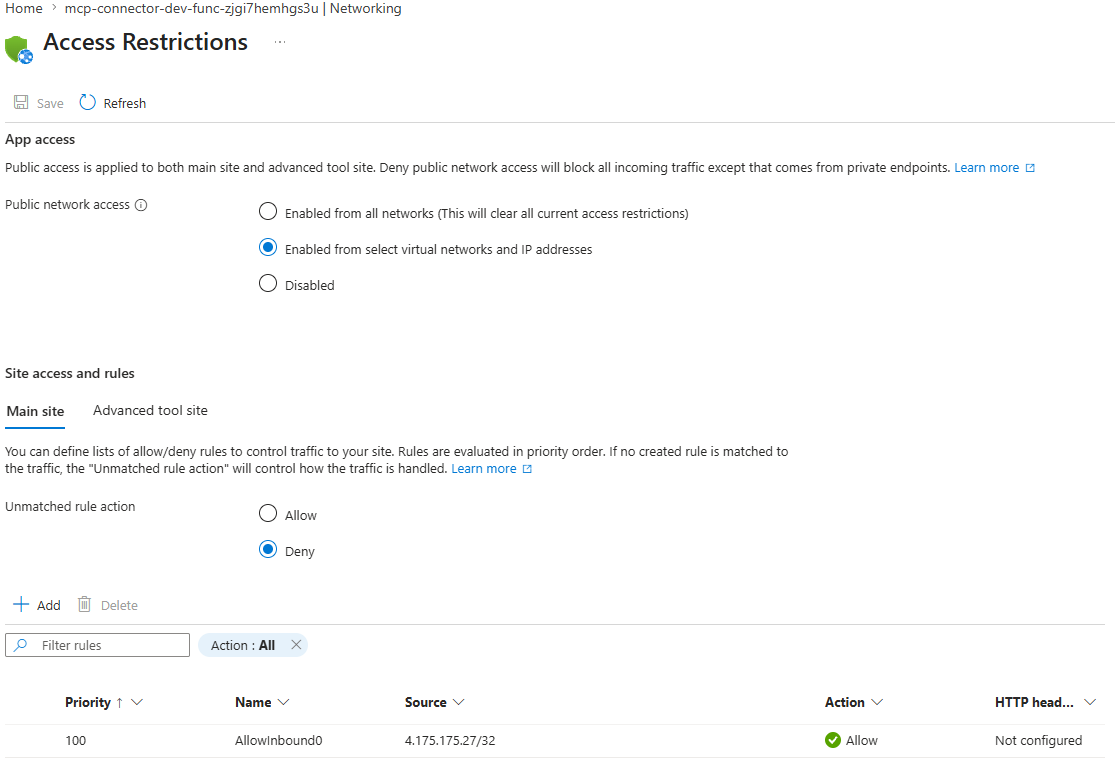
Because the Azure functions should not be accessed directly, I've defined networking access restrictions to only allow traffic from APIM.
Go to the Settings → Networking of the Azure Function and allow access only from APIM.
Create Entra ID app registration
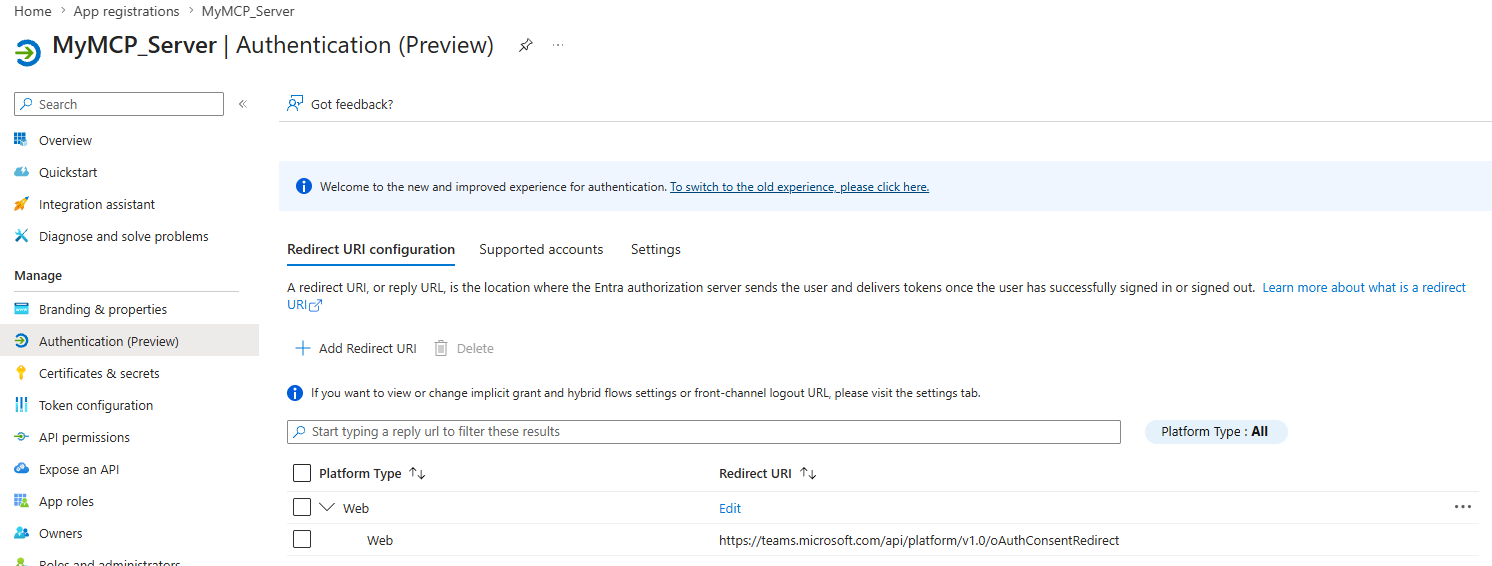
Go to Entra ID Admin Center and add new app registration.
Select Authentication under Manage. Add https://teams.microsoft.com/api/platform/v1.0/oAuthConsentRedirect to the Redirect URIs in the Web platform.
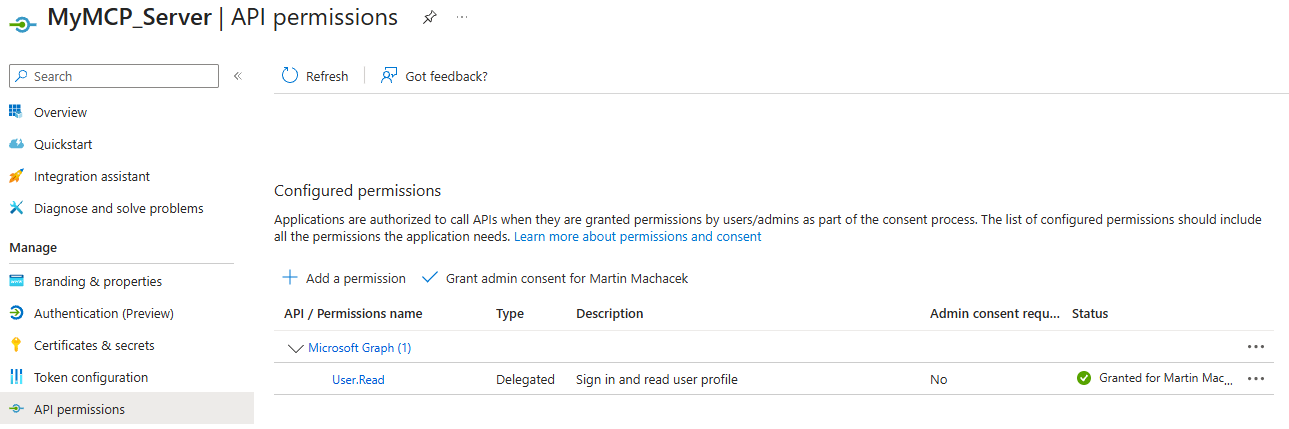
Select API permissions under Manage. Add and grant delegated permission User.Read
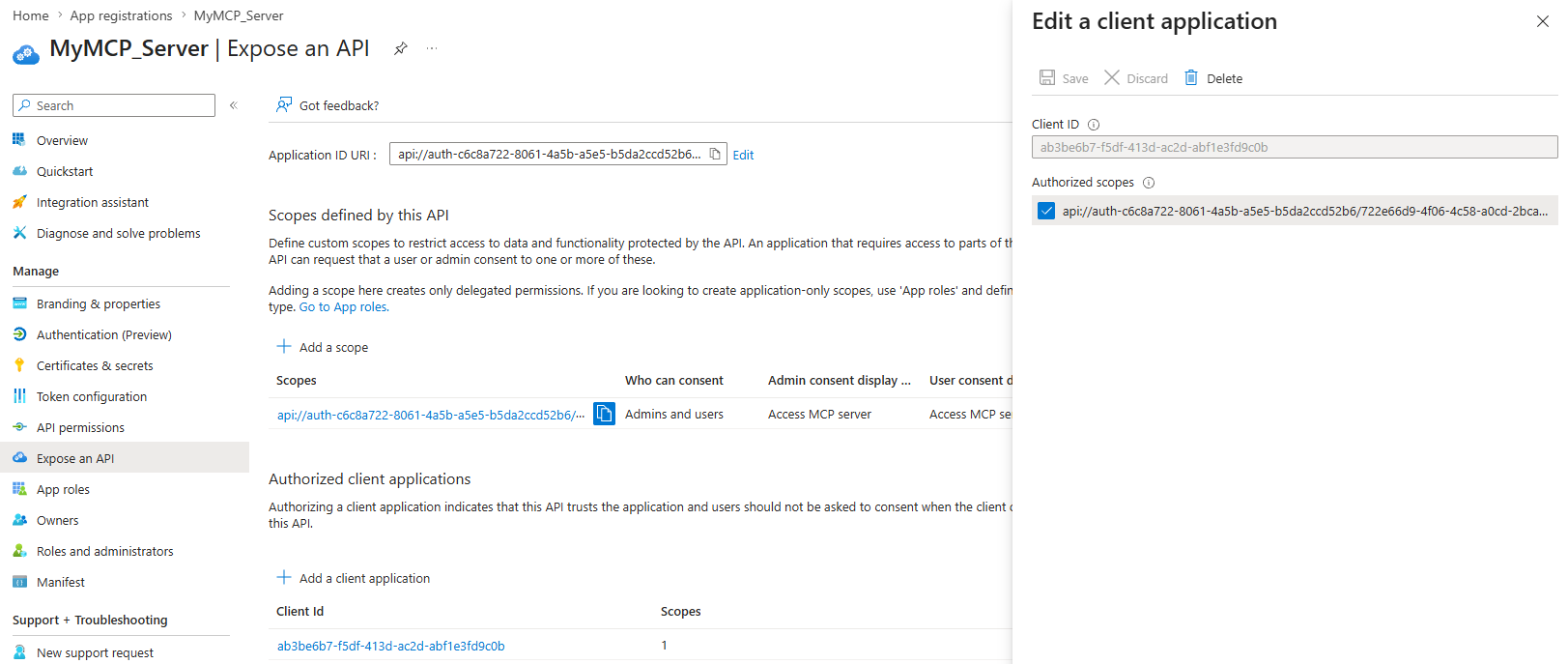
Select Expose an API under Manage. Here, we need to:
- Select Add a scope and create a new scope like
MCP.Accessto allow the MCP client to access the MCP server API. - Select Add a client application and add the client ID of Microsoft's enterprise token store,
ab3be6b7-f5df-413d-ac2d-abf1e3fd9c0b.
With the MCP server deployed and the Entra app registered, the next step is to put API Management in front of the function to enforce token validation.
Configure APIM to protect the MCP server
With the MCP server deployed and the Entra app registered, the next step is to put API Management in front of the function to enforce token validation and expose the required OAuth Protected Resource Metadata.
Select APIs under APIs and add two APIs:
- MCP Protected Resource Metadata
- add operation
GET /.well-known/oauth-protected-resource/mcp
- add operation
- MCP Server API
- add operation
POST /,GET /andDELETE / - add operation
GET /.well-known/oauth-protected-resource
- add operation
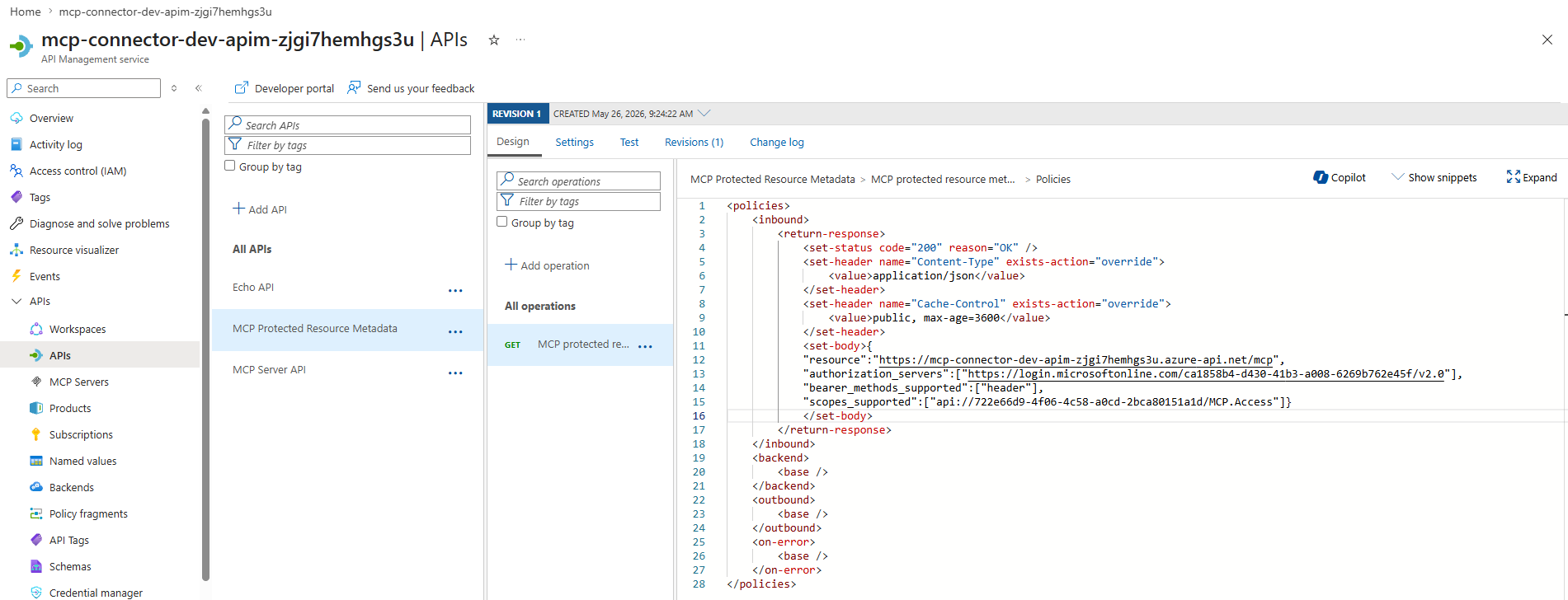
There are two operations for protected resource metadata, because the OAuth Protected Resource Metadata spec (RFC 9728) defines two discovery strategies:
- Resource-relative: /.well-known/oauth-protected-resource
- Origin-relative with path suffix: /.well-known/oauth-protected-resource/
The inbound policy for GET /.well-known/oauth-protected-resource/mcp and GET /.well-known/oauth-protected-resource operations:
The inbound policy for POST /, GET / and DELETE / operations:
The outbound policy for POST /, GET / and DELETE / operations:
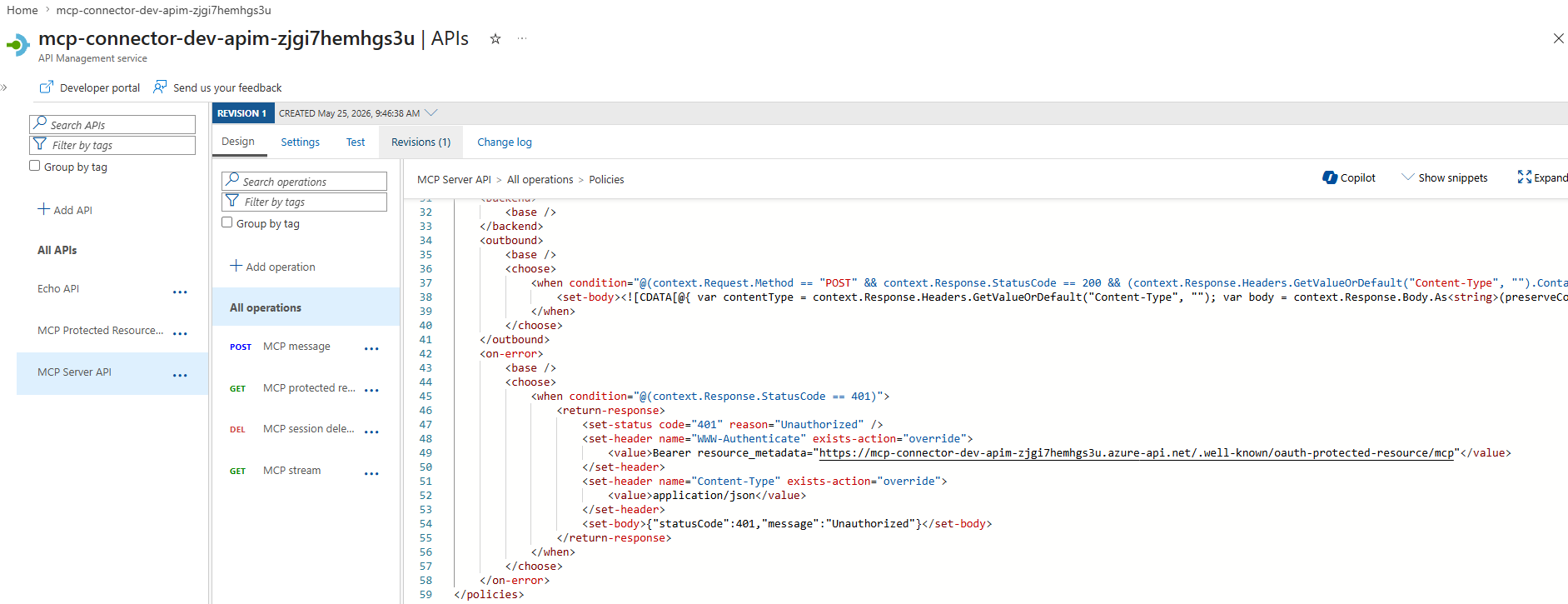
The outbound policy contains C# code to read the annotations from the McpMetadata attribute and include them in the MCP response.
<![CDATA[@{
var contentType = context.Response.Headers.GetValueOrDefault("Content-Type", "");
var body = context.Response.Body.As<string>(preserveContent: true);
if (string.IsNullOrEmpty(body)) { return body; }
var isSse = contentType.Contains("text/event-stream");
var output = new System.Text.StringBuilder();
var lines = isSse ? body.Split(new[] { "\r\n", "\n" }, System.StringSplitOptions.None) : new[] { body };
for (int i = 0; i < lines.Length; i++)
{
    var line = lines[i];
    string payload;
    string prefix;
    if (isSse)
    {
        if (line.StartsWith("data:"))
        {
            prefix = "data: ";
            payload = line.Substring(5).TrimStart();
        }
        else
        {
            output.Append(line);
            if (i < lines.Length - 1)
            {
                output.Append("\n");
            }
            continue;
        }
    }
    else
    {
        prefix = "";
        payload = line;
    }
    var rewritten = payload;
    if (!string.IsNullOrWhiteSpace(payload) && payload.Contains("\"tools\""))
    {
        try
        {
            var obj = Newtonsoft.Json.Linq.JObject.Parse(payload);
            var tools = obj.SelectToken("result.tools") as Newtonsoft.Json.Linq.JArray;
            if (tools != null)
            {
                foreach (var token in tools)
                {
                    var tool = token as Newtonsoft.Json.Linq.JObject;
                    if (tool == null) { continue; }
                    var annotations = tool["annotations"] as Newtonsoft.Json.Linq.JObject;
                    if (annotations == null)
                    {
                        annotations = new Newtonsoft.Json.Linq.JObject();
                        tool["annotations"] = annotations;
                    }
                    annotations["readOnlyHint"] = true;
                    annotations["destructiveHint"] = false;
                    annotations["openWorldHint"] = false;
                    var name = (string)tool["name"];
                    if (tool["title"] == null)
                    {
                        tool["title"] = name == "list_competencies" ?
                            "List competencies" : name == "get_competency_levels" ? "Get competency levels" : name;
                    }
                    if (annotations["title"] == null)
                    {
                        annotations["title"] = tool["title"];
                    }
                }
                rewritten = obj.ToString(Newtonsoft.Json.Formatting.None);
            }
        }
        catch
        {
            rewritten = payload;
        }
    }
    output.Append(prefix).Append(rewritten);
    if (isSse && i < lines.Length - 1)
    {
        output.Append("\n");
    }
}
return output.ToString();
}]]>
At this point, the MCP server is ready and protected by Entra ID and can be accessed by tools like GitHub Copilot, Claude Code, or Codex.
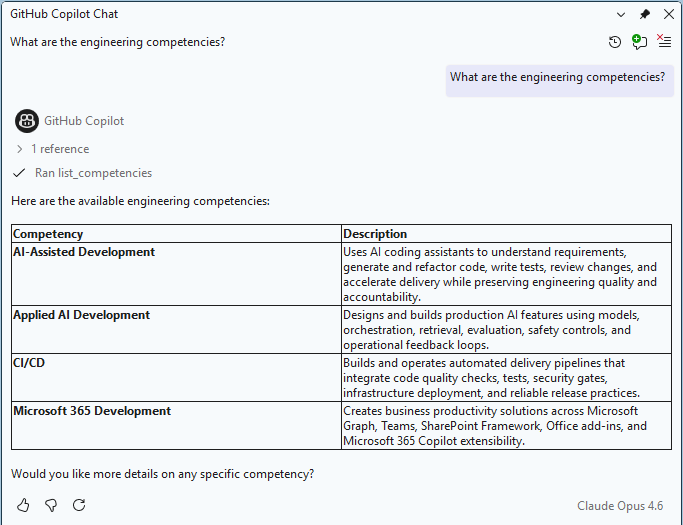
However, to make it available as a federated connector in Microsoft 365 Copilot, two more registrations are needed. First, we register an SSO client in Teams Developer Portal.
Register the SSO client in Teams Developer Portal
Go to Teams Developer Portal, select Microsoft Entra SSO client ID registration under Tools.
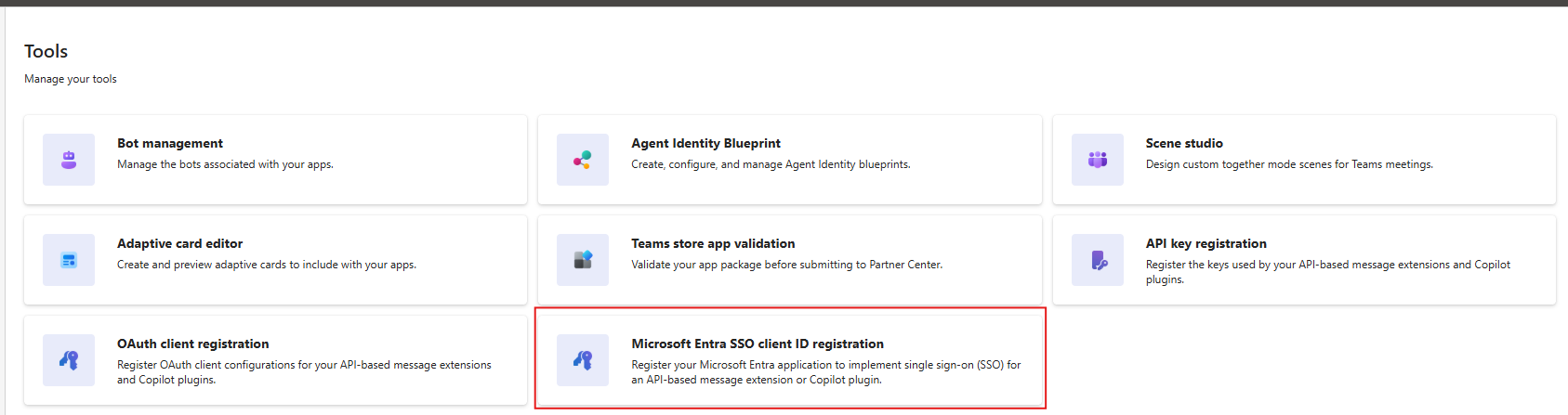
Enter settings and restrictions for the client registration:
- Registration name: client name
- Base URL: APIM endpoint URL (don't include
/mcpsuffix, just the base URL) - Restrict usage to your organization only
- Client id of the Entra ID app
- Scope to be requested: scope created in the Entra ID app registration
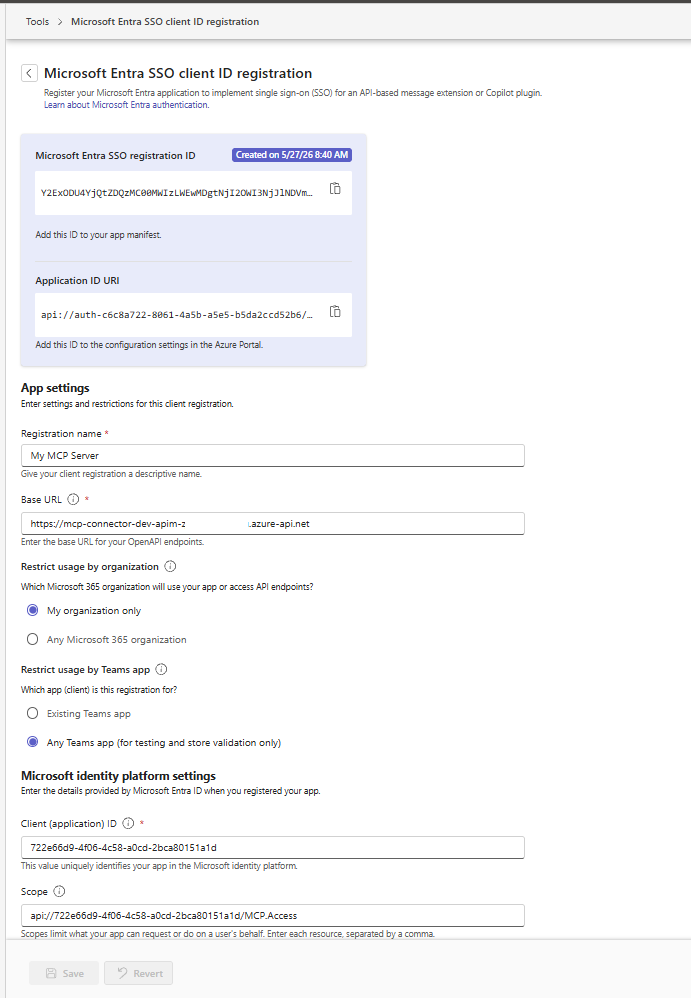
Save the changes
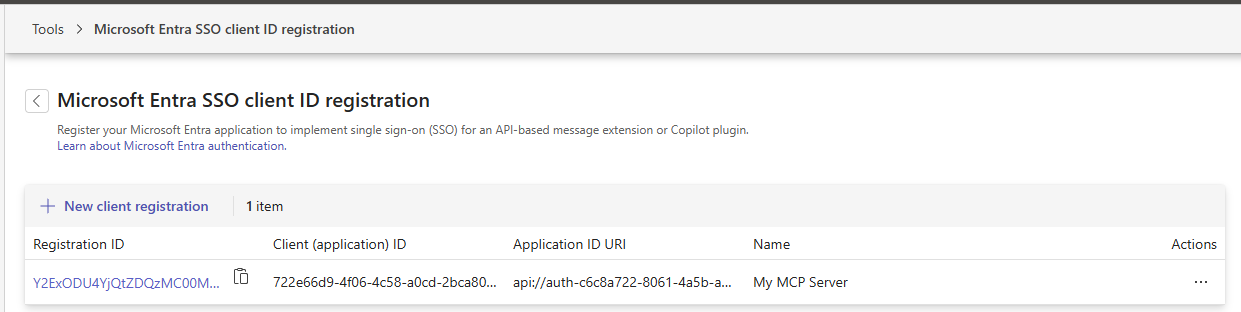
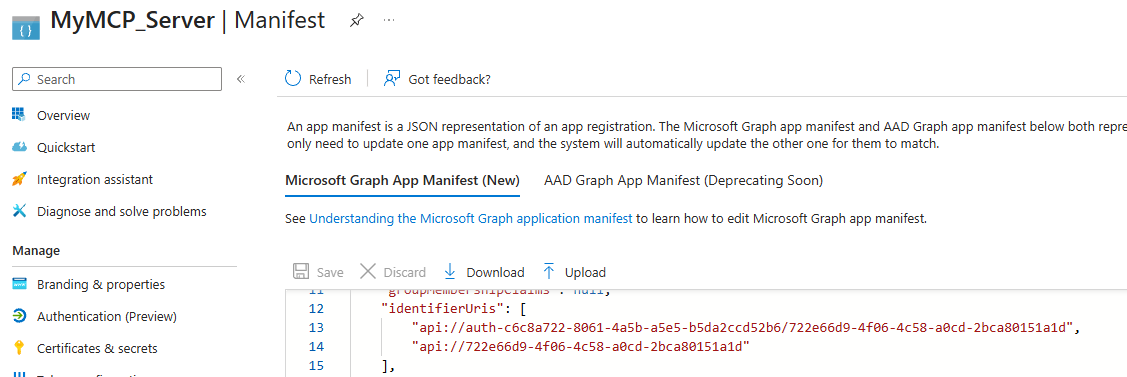
Go back to Entra ID Admin Center. Select Manifest under Manage and add the SSO registration's client ID as an additional identifier URI.
Register the custom MCP connector in Microsoft 365 Admin Center
With the SSO client registered, we can now complete the final step: registering the connector itself in Microsoft 365 Admin Center.
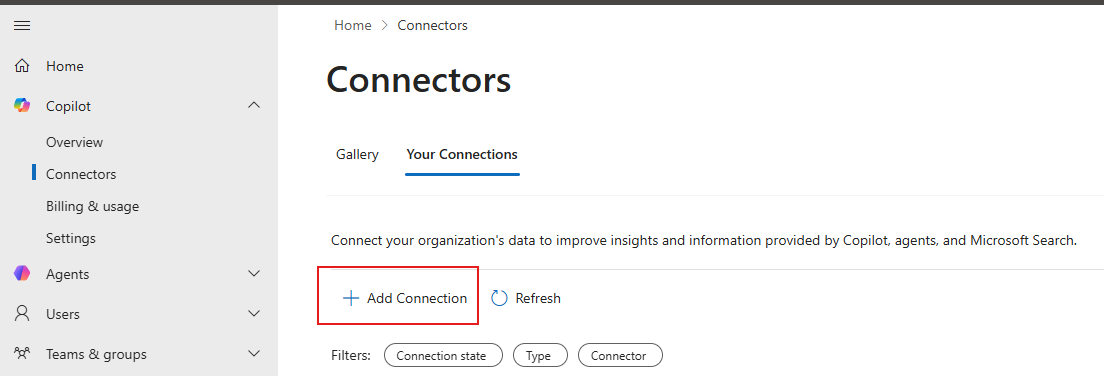
Select Connectors under Copilot and click on Add Connection.
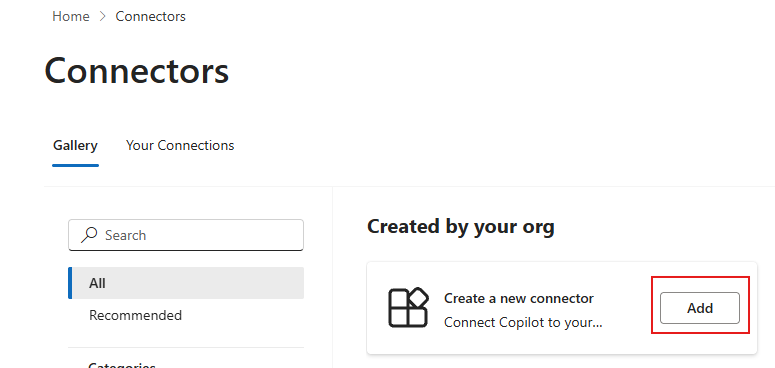
Select Gallery and under Created by your org tab, click on Create a new connector.
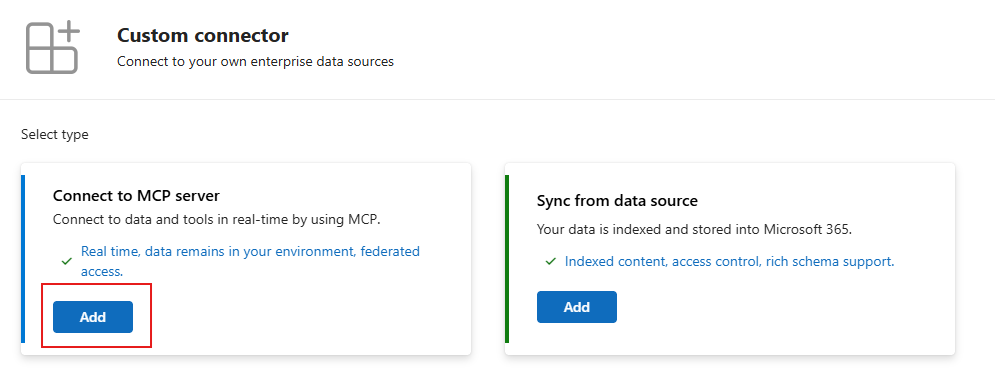
Select Connect to MCP server and click on Add. Ensure that you have AI Administrator role. In my case, I didn't see the option for MCP server until I was assigned the AI Administrator role.
Fill the name of the connector, MCP endpoint URL, select Entra SSO as authentication type and provide the SSO registration ID from Teams Developer Portal.
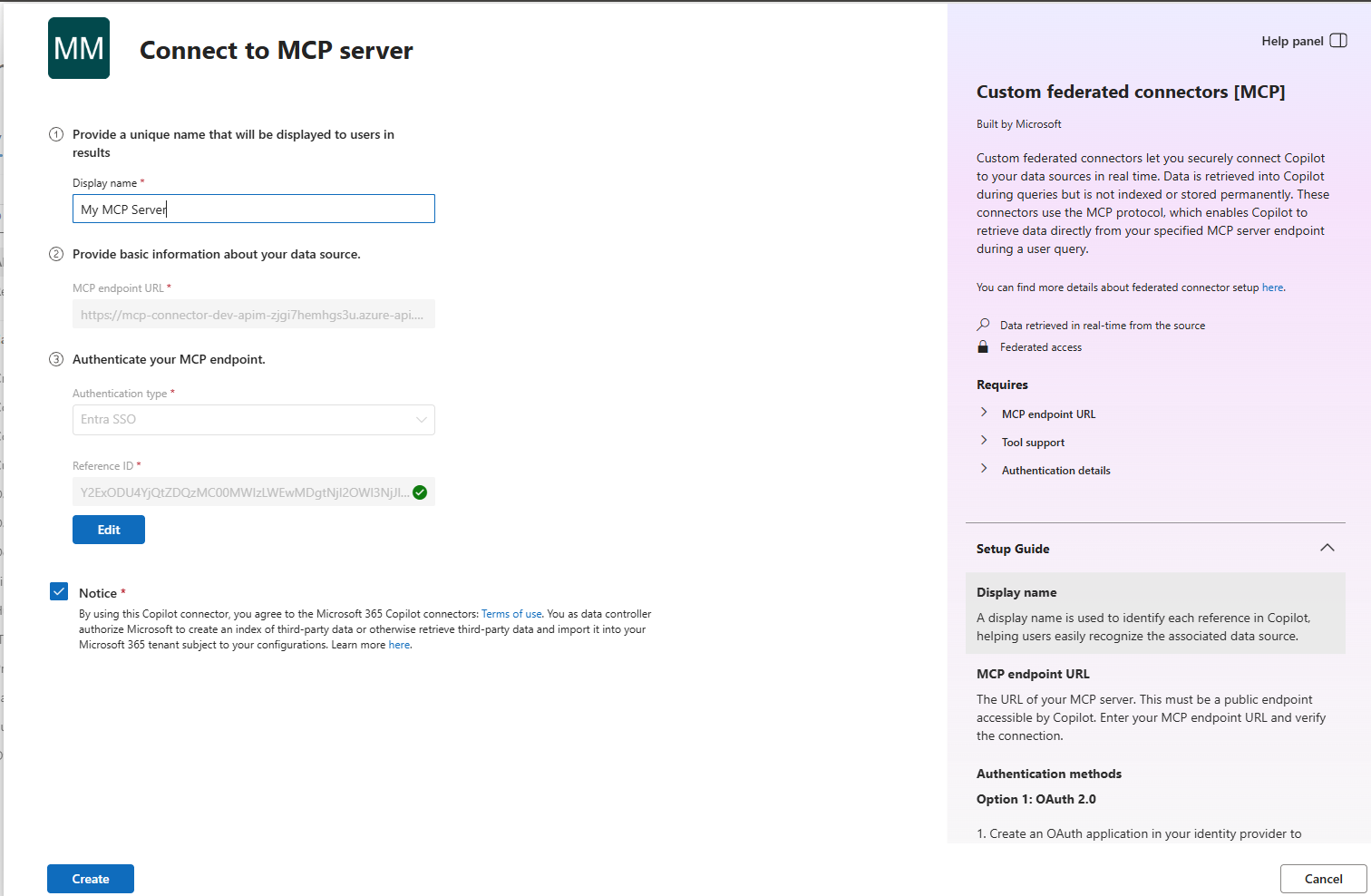
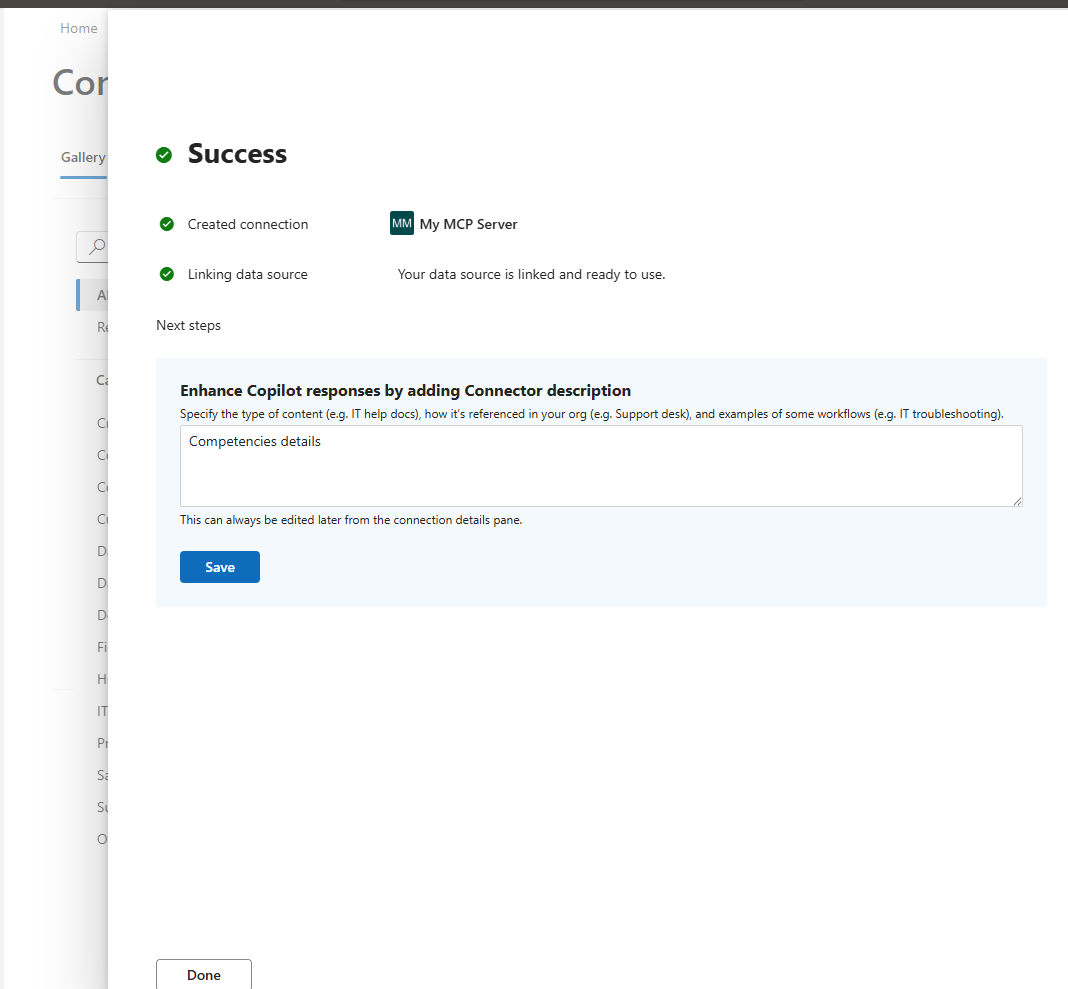
Click on Create and the connector should be created.
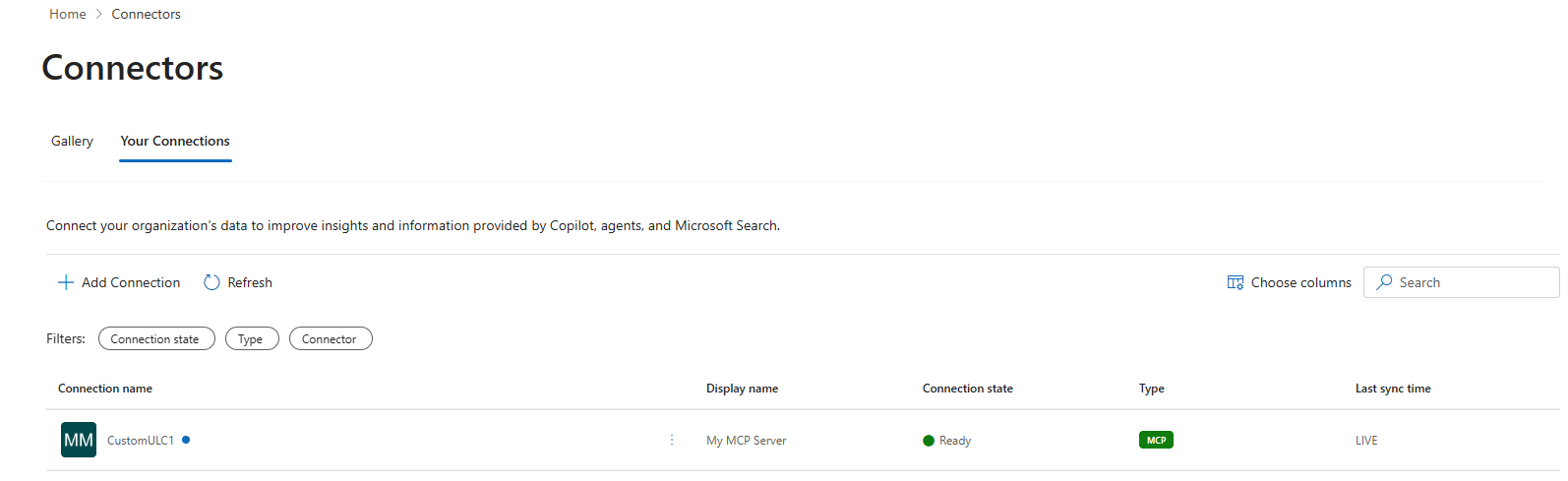
Check that the connector is listed under your connections.
Conclusion
Federated connectors let Microsoft 365 Copilot reach into your own APIs at query time—no data duplication, no stale indexes. In this walkthrough we connected the pieces end to end:
- Built an MCP server in Azure Functions with read-only tool annotations.
- Locked down networking so only API Management can reach the function.
- Registered an Entra ID multi-tenant app with the correct scopes and redirect URIs.
- Configured APIM to validate tokens and forward authenticated requests.
- Created an SSO client registration in Teams Developer Portal.
- Registered the connector in Microsoft 365 Admin Center.
The result is a live, user-authenticated channel between Copilot and your business logic. Because permissions are enforced at the source, you stay in control of who sees what—without copying sensitive data into Microsoft's index.
From here you can extend the pattern: add more tools to the MCP server, layer APIM rate-limiting or caching policies, or combine this federated connector with synced connectors for content that benefits from semantic indexing.
You can find the code for the MCP server and bicep files for infrastructure deployment in my GitHub repository. It contains APIM policies and deployment scripts to help you get started.